
The moment you consider a possibility, you are responsible for it. You can choose whether or not you do something about that possibility, but you must own that decision.
Blog
-
-
Working outside this morning and enjoying a bowl of Cult’s Blood Red Moon from this month’s Tin SocietyArchived Link box.
-
There is no right time to quit a job, have kids, or start something new. If you want something, you have to take the first step immediately and figure things out along the way. The right time will never come. Jump now.
-
Inge Druckrey: Teaching to See
Awesome video on design thinking:
-
Takeaways from this week’s Breaking Smart newsletter, Betting the Spread on Inexorables:
- Try multiple ultra short-term bets around a shared assumption.
- Don’t stick with something you don’t find valuable just so you “aren’t a quitter.”
- Constantly question whether or not the next step is what will produce the best results.
- Bet the spread, then switch between parallel bets as data changes. Work isn’t the horse races. You can change bets whenever you want.
- There is a difference between unfocused dabbling and betting the spread around a central inexorable trend. That difference is that learning and outcomes around that single trend compound. Unfocused dabbling doesn’t.
-
Derek Magill on Activation over Awareness
Great stuff on marketing from my coworker Derek Magill:
“Hold off on new marketing efforts and let’s fix your funnel first.” Oftentimes the most promising “marketing” strategy is not to focus on growing awareness and traffic, but in making the most of the existing awareness and traffic you already have.
Read his full post here. Scroll down to May 5: Awareness vs Activation.
-
Ignore the Rules and Be True to Yourself
“Writers write every single day.” “If you aren’t writing code every day, you can’t call yourself a developer.” “The best in every field get up at 4am and start working by 6am after a workout and an hour of reading.”
Rules are so fun to state. They make you look hardcore, driven, and disciplined. But if you are on the other side of that exchange and are the one hearing those rules, ignore them.
Seriously, fuck those rules.
Don’t get me wrong, I love hearing about people’s processes. I love reading books like Daily Rituals. But you won’t get anywhere by worrying about following someone else’s process. You have to figure out with works for you and be ruthless in following it.
I personally see a lot of benefits of showing up and doing things daily. I don’t wait for inspiration to find me, I spend time consuming great stuff and thinking about it. I’ve recognized that I need space to think, walk, read, and listen. Inspiration always comes, and when it does, I’m ready.
That said, I don’t stress out too much over it. While I do get stuff done every day, that isn’t necessarily when my best work hits me. Sometimes I’ll have weeks where I get tons of ideas and am excited to work on some cool stuff. For example, I had the idea to build this WordPress theme this week. This is the first full WordPress theme I’ve done all on my own. I couldn’t get it out of my head until I got the templates done and shipped it. My Jekyll blog template was the same way last year. So was the Sol LeWitt project, the Slack Toggl slash command, the Apple Photos analysis project, and the Cocktail library.
Other times I’ll go a few weeks without being moved to do anything beyond the daily tasks I’ve set for myself. I’ve learned to be okay with that. Fuck what works for other people. These are my projects.
What I can never forgive myself for, though, is not doing the work when I feel the call.
Not following the traditional rules is totally fine. What is inexcusable is not staying true to your own terms and getting your work done.
-
Cool writing prompt from Cheryl Strayed on the Tim Ferriss Show: Pull out your keychain and write about the history of each key. https://overcast.fm/+BmGWAa3Lc
-
I just made a WordPress theme made to be used with Micro.blog. It is simple, minimalist, and includes a small tool to verify your site with Micro.blog. You can download or fork it here: https://github.com/cagrimmett/simplemicroblog-wp
-
Testing out this Twitter cross-posting bot from http://micro.blog/cagrimmett
-
Great Falls
Yesterday Amanda and I visited Great Falls in Paterson, NJ.

-
Testing a new post from Micro.blog’s iOS app.
-
Cooking Rice
I got a tip today from a Persian chef about cooking rice the Persian way: After it boils for a few minutes, drain and rinse it. Then put it back in the pot for 25 minutes. You get a nice crispy layer at the bottom and rice that is completely separated, not gummy.
-
Leonard E. Read’s bookplate
Check out Leonard E. Read’s sweet bookplate that I found:

-
Scratch your own itch
The best projects are ones that build something you want to use or solve a problem you actually have. They don’t need to be big or new. Almost every project starts out as small and a remix of something else. Then you take it and build on it.
-
Creating Consistently

“Piece of pie.” — Donatello Creating is awesome. Creating consistently is even better. Here are some strategies for being consistent in your creative endeavors.
I’ve spent the last month blogging every day, but this isn’t the first time I’ve regularly put stuff out online. I posted every single day in 2010 and I’ve averaged a post a week since 2011.
Here are some strategies I use to create content consistently. This applies to writing, painting, podcasting, and other creative endeavors.
Harness Inspiration
When you have an idea, stop and get it down. If you have move things around enough to write the full post, that is great. If not, spend 5 minutes making an outline that you can flesh out later.
Amanda and I have made this a regular part of our lives. It is not uncommon for us to pause our conversation in the middle of dinner to get down bullet points that we can return to later.
Don’t Wait for Perfection
Getting over your fear of shipping is necessary to producing content consistently.
I don’t have a lot of advice here other than:
- The more you do it, the easier it is.
- Not everything needs to be groundbreaking. People are encountering something new for the first time every single day. I bet you have many things you can introduce people to.
- Ignore other people. Constructive feedback is one thing, but if it isn’t coming from people who also consistently produce content, ignore it and move on. In the words of Phife Dawg in Scenario:
Bo knows this (what?) and Bo knows that (what?)
But Bo don’t know jack, cause Bo can’t rapI reread The War of Art or Turning Pro, both by Steven Pressfield, at least once a year to get back on track with shipping.
Remove Barriers
When you are tired and don’t want to produce, any barrier can be turned into an excuse to wait until the next day. Remove as many barriers as you can.
- If you write on Medium or WordPress, download the mobile apps and post directly from your phone.
- If you are a drawer or designer, carry your sketchbook around with you.
- If you paint, carry a mini watercolor set with you.
- If you podcast, record voice memos to while you walk or drive that can be spliced into usable segments.
- If you are a web developer, use Keyboard Maestro or Text Expander to automate launching your entire development environment.
Take every piece of your creative process and remove as much friction as possible. Creation shouldn’t be something that only happens when the stars align. The easier you make it to get to work, the more work you’ll get done.
Take Cues from Daily Life
Everything you do in your daily life presents you with a chance to create. Writing is the most obvious because you can write about situations, problems, and things you’ve learned. You can also apply this to other forms of creation:
- We were preparing for visitors a few days ago, so I wrote out my checklist for guest preparation.
- We took a day trip from LA to Joshua Tree National Park a few weeks ago, so a few days later I wrote an itinerary for others to follow.
- I went to the Hudson River Museum with some friends, so I took notes and wrote a post with interesting facts about the Hudson.
- Both Amanda and I write about problems we solve at work.
- I spend a part of every work day solving tech problems, so I generalize the specific issues and write tech tutorials that others can use.
- I take photos whenever I cook anything new, so if it turns out really well I have visuals that I can turn into a full post on Cook Like Chuck.
- I take photos of what I eat out and write down tasting notes so that I can use those flavors in my own cooking.
- If you are a visual artist, take lots of photos of things that inspire you throughout the day and make a point to revisit them each time you sit down to work.
- If you are a podcaster, take 5 minutes out of every hour to make voice memos about what you are thinking about.
- If you build houses, keep architecture notes and take photos of things that inspire you. Go through them before you start drafting your next project.
Keep Lists

Orange is drafted, green is published. Whenever I have an idea for a post but can’t write it immediately, I put it in my Blog ideas Trello board. I have a list for each blog I can post to. If I have an outline, I put it in the comments.
I bet visual artists, podcasters, journalists, and creators of all types could do the same thing with their craft.
Play the Long Game
Playing the long game can mean two things:
- Doing small things consistently build up into a large body of work over time. I started posting my reading notes back in November and have already built up 15 entries.
- Notes and photos taken today can be combined and used any time in the future. If you get in the habit of building things up over time, you will set future you up for success.
Here are some cases where I’ve played the long game on Cook Like Chuck:
- I took notes and photos of my kombucha experiments over the course of a year and turned it into a long post at the end of the year.
- I took photos of every weekend breakfast I made for a few months, then noticed a trend and wrote a recipe for Breakfast Bowls.
- I took progression photos of pear brandy aging for two months and it made a nice gallery.
- I collected my favorite cocktail recipes for a few years and turned them into an online cocktail library.
- I kept track of weekly CSA deliveries for an entire season and crunched the numbers at the end of the year to do a cost comparison.
I also love creating personal cheatsheets. Every time you have to look something up, explain it in your own words and add it to a note or document. You can publish these over time. Here are a few I’ve made:
- DNS Terms cheatsheet
- Linux cheatsheet
- Vegetable roasting times, temperatures, and spices that pair well
- It isn’t posted yet, but I have one in the works for Regular Expressions snippets that I use all time for reformatting text.
-
Creating Consistently

-
Five Things You Didn’t Know About the Hudson River

Photo of the Hudson from Breakneck Ridge by Greg Barry 
1. The Hudson is a Tidal Estuary
Twice a day the waters of the Atlantic rise higher than the levels of the Hudson. At high tide, salt water pushes up the Hudson, raising the water levels. When the tide goes back out, the Hudson switches back to its normal flow direction back out to sea.
The salinity levels vary by location and time of year. In the spring, the fresh water line is around Yonkers. At the end of summer, the river is salty all the way up to Newburgh.
2. The Hudson has lots of blue crab
Maryland isnât the only place that has blue crab. Commercial and recreational fisheries up and down the Hudson catch blue crab from June through October.
They migrate up the river in the summer to feed as the salt line moves further north, then they migrate back into saltier waters by the bay in the winter.
I regularly see blue crab around marshes at low tide in Yonkers in the summer.
3. Tappan Zee Bridge is at the riverâs second widest point in order to keep toll revenue going to New York State
The Tappan Zee Bridge, which goes from Rockland County to Westchester County near Tarrytown, is at the Hudsonâs second-widest point, even though the river gets much narrower closer to NYC.
The reason that the location neat Tarrytown was chosen was because it is just outside of Port Authorityâs 25 mile jurisdiction. That means toll revenue would go to New York State, not Port Authority.
4. The Union used The Palisades for Target Practice during the Civil War
When the Union Navy build the ironclad USS Passaic, they needed a safe place to test its cannons. They picked the New Jersey Palisades. On November 15, 1862, the crew sailed the ironclad up the Hudson and pointed its cannons at the rock cliffs. As James M. Madden writesArchived Link,
It misfired several times, to the amuse- ment of those officers aboard who had predicted that the shipâs turret design would interfere with effective gunnery. And then, on the fourth attempt, the Dahlgren fired. That first round splintered the rock wall and produced a massive echo that witnesses likened to the explosion of a powder mill. Despite the noise, the navy was satisfied, as there was no concussion or smoke inside the shipâs gun turret, despite dire predictions from critics. Three more shots produced as many more echoes and showers of shattered rock. An Irishman aboard, awed by the destructive demonstration, declared the Passaic a âfloating divil.â
5. Oysters are coming back
Oyster beds once stretched from the mouth of the Hudson all the way up to Tarrytown. Due to pollution and overfishing, theyâve been almost absent for the last few decades.
Good news: The river is cleaner now than it has been in decades and at super low tides, you can see evidence of oyster beds making a comeback.
-
Why I Set Personal Deadlines

We all understand the importance of setting deadlines at work. Everything revolves around intentionally set deadlines and there are consequences if they aren’t met. Deadlines are a useful tool at work to keep progress moving forward. If there were no deadlines and no consequences for missing them, how many projects would realistically get done?
Apply the same thinking above to your personal life: If you don’t intentionally work at improving yourself, how can you expect that improvement to happen?
PDPs
At Praxis, our favorite self-improvement tool is the PDP: A self-chosen 30-day challenge with tangible benchmarks and outcomes. The best PDPs involve doing something tangible every single day for 30 days. These daily deadlines, if taken seriously, produce results.
Here are my PDPs so far for this year:
- January: Circadian rhythm fasting. Fast for 13–16 hours starting after dinner each day. Try to have dinner as close to sundown as possible.
Outcomes: Lost 7lbs, Easier to wake up early. - February: Continue fasting and complete a Whole 30 — eating only real fruits, veggies, and meats for 30 days straight. No sugar, dairy, grains, additives, or desserts.
Outcomes: Lost 9lbs more, down a jean size, more energy. - March: Read for at least an hour every day.
Outcomes: Finished one new book each week. - April: Writing a valuable blog post every single day, either on cooklikechuck.com, cagrimmett.com, Medium, or the Praxis blog.
Outcomes: 26 new blog posts and counting, higher website traffic. - May (planned): Build and launch LeonardRead.org. Do one thing each day to digitize, OCR, edit, publish, and market Leonard E. Read’s journals and writings.
You don’t necessarily commit to doing something every day for 30 days. I like doing it because it leaves no room for excuses. That said, it isn’t for everyone. Some people work better with weekly goals so they can dedicate their weekends to it. Others like to dedicate one morning or evening each week to self-improvement projects.
No matter which path you choose, remember these two keys to self-improvement:
- Challenge yourself. Push the limits of your abilities and force yourself to learn.
- The deadlines need to be clearly defined, not nebulous.
- Never let yourself skip. Sometimes this is brutal. Yesterday this meant I worked from 8am to midnight with a break for dinner. Saying, “I don’t have time” actually means, “It isn’t a priority for me.” If you don’t give yourself room to use that excuse, you won’t make it.
On Missing a Deadline
Like any good manager, don’t fire yourself when you miss a deadline. Make sure you are falling forward, identifying why you missed the deadline, and put systems in place to make sure it doesn’t happen again.
No Room for Flexibility
Consider this quote on goal setting from HBR:
Maybe you are the sort of person who finds it hard to motivate yourself to take on such goals. If that’s the case, taking a flexible approach might be best for you.
I don’t think that flexible goals are good for anyone. They signal that:
- You don’t take your goals seriously enough to put systems in place to overcome your fear and follow through on them.
- You are unwilling to commit.
We are capable of more than we give ourselves credit for. Set rigid goals and give yourself the chance to rise to meet them. That is what growth is about.
We don’t get ahead by being easy on ourselves. We don’t get ahead by going through the motions. We get ahead by intentionally working on things that improve our skills and abilities.
Set clearly defined personal deadlines and hold yourself accountable for meeting them.
- January: Circadian rhythm fasting. Fast for 13–16 hours starting after dinner each day. Try to have dinner as close to sundown as possible.
-
Why I Set Personal Deadlines

-
Running Zapier Actions During Business Hours Only

Two weeks ago I had a problem I wanted to solve with Zapier: Only running a particular Zapier action during business hours and delaying everything that happens outside of business hours until the next day.
I tried multiple approaches to make this happen, but each one fell short:
- Filtering up front for business hours meant that everything outside of business hours stopped due to Zapier’s Continue Only If filter.
- Only checking that the time was before 5pm meant that zaps could go through at 2am.
- Only checking that the time was after 8am meant that zaps could go through at 11pm.
Zapier is really great at handling linear workflows (if X happens, then do Y), but it isn’t really set up to handle nested workflows (if A, then 1, else if B, then 2, else if C, then 3). In order to correctly handle only running zaps during business hours, individual zaps would need to have nested logic. This is unlikely to happen on Zapier any time soon, so I thought I was out of luck.
After thinking about it for a few days, it hit me: Why not use two different zaps simultaneously? As long as the zaps are configured in a way that one always works and the other one always gets filtered so they never conflict and duplicate actions, it can work! Yes, this doubles your zap usage, but it is a great way to get around not having nested logic in individual zaps.
By combining the Date/Time formatter, Only continue if… filter, and the Delay Until action with different settings in two different zaps, I achieved what I wanted.

Here is a sketch of the solution I’m using:
Zap 1: Handling actions between 00:00 and 17:00
After the trigger (a form submission), I immediately set up three actions:
- Zapier Formatter’s Date and Time Formatter to get the time the zap triggered and transform it to a usable format in my time zone.

2. Zapier’s Only Continue If filter to check the time of the previous step and only allow it to continue if the time is before 17:00. Anything that happens after 17:00 gets to this point in the zap and stops.

3. Zapier’s Delay Until action to delay actions until 08:00.
The way that the Delay Until action works is that if the time is before your specified time, the action will be delayed until the time you specified. If the current time is after the time you specified, the action will continue immediately. Understanding this ended up being the key to this workflow design.

Everything else I want to occur during business hours comes after this step in the zap.
Zap 2: Handling actions between 17:00 and 23:59
For 17:00 through 23:59, I use the same three actions and filters, but with different settings.
- Zapier Formatter’s Date and Time Formatter to get the time the zap triggered and transform it to a usable format in my current time zone.
- Zapier’s Only Continue If filter to check the time of the previous step and only allow it to continue if the time is after 17:00. Anything that happens before 17:00 gets to this point in the zap and stops.

3. Zapier’s Delay Until action to delay all further actions until 08:00 the following day.

Here’s how it works
Both zaps get triggered from the same form submission. The way we’ve set them up, one of the two zaps will always run and the other will always get filtered out by the “Only continue if…” step. Our cutoff point is 17:00. Whatever happens before 17:00 gets handled by Zap 1 and Zap 2 gets filtered. Whatever happens after 17:00 gets handled by Zap 2 and Zap 1 gets filtered.
Examples:
- Form submission at 3:21am: Zap 1 kicks in and delays the action until 8am. Zap 2 gets filtered and does not run.
- Form submission at 8:41am: Zap 1 runs immediately because it is before 17:00, but after 8am, the Delay Until time. Zap 2 gets filtered and does not run.
- Form submission at 2:15pm: Zap 1 runs immediately because it is before 17:00, but after 8am, the Delay Until time. Zap 2 gets filtered and does not run.
- Form submission at 6:08pm: Zap 1 gets filtered and does not run. Zap 2 kicks in and delays the action until 8am the next day.
- Form submission at 11:52pm: Zap 1 gets filtered and does not run. Zap 2 kicks in and delays the action until 8am the next day.
- Form submission at 12:02am: Since it is now a new calendar day, Zap 1 kicks in again and delays the action until 8am. Zap 2 gets filtered and does not run.
-
HTML and CSS Basics for WordPress

Here are resources for WordPress users who want to use HTML and CSS to alter the structure, look, and feel of their themes, posts, and pages.
What HTML and CSS do

HTML is primarily for structure. HTML is the base level of most what you see right now in your internet browser. In order for any CSS or Javascript to work on content, that content must be first wrapped in an HTML tag.
CSS is primarily for presentation. CSS is essentially a shorthand way of giving instructions to HTML tags on how they should look and where on they page they should show up. CSS does include some behavioral interactions components like hover and on-click actions.
Javascript is primarily for behavioral interaction, but its scope has grown significantly in the past few years. We won’t cover Javascript in this guide. It requires its own guide, which will come later.
Resources
My favorite resource for learning the basics of HTML and CSS from scratch is W3Schools. Their examples are clear and they have widgets where you can test out the syntax and poke around what already works to learn more.
Here is the W3Schools HTML tutorial. I recommend completing the HTML HOME through HTML Symbols. This will cover 95% of the HTML you will encounter in WordPress.
Here is the W3Schools CSS tutorial. I recommend completing CSS HOME through CSS Forms. This will cover the basics of the CSS that you will see in WordPress. Pay particular attention to the Box Model. Once you feel comfortable with the basics, feel free to move on to the CSS 3 section, which builds on the basics.
After you’ve gotten your feet wet with W3Schools, test your knowledge by working your way through Codecademy’s HTML and CSS course.
How to use these resources
The best way to learn HTML and CSS is by actually writing it, refreshing the page, and seeing what happens. A good rule is to spend 3 hours applying for every 1 hour reading/taking notes.
Get yourself an easy-to-use text editor like Atom, make a new file names
hello.html, and then start writing. After you’ve written your first line, save the file and open it in your web browser to admire your handiwork.Then go back to Atom, make some changes, save, and then hit Refresh in your browser. Repeat.
To find which style definitions and HTML tags apply to what you see on your favorite websites, learn how to use Chrome’s debugger to find them. After a little practice you’ll be able to quickly identify the underlying markup and apply your own overrides and fixes.
Where you’ll use HTML and CSS in WordPress
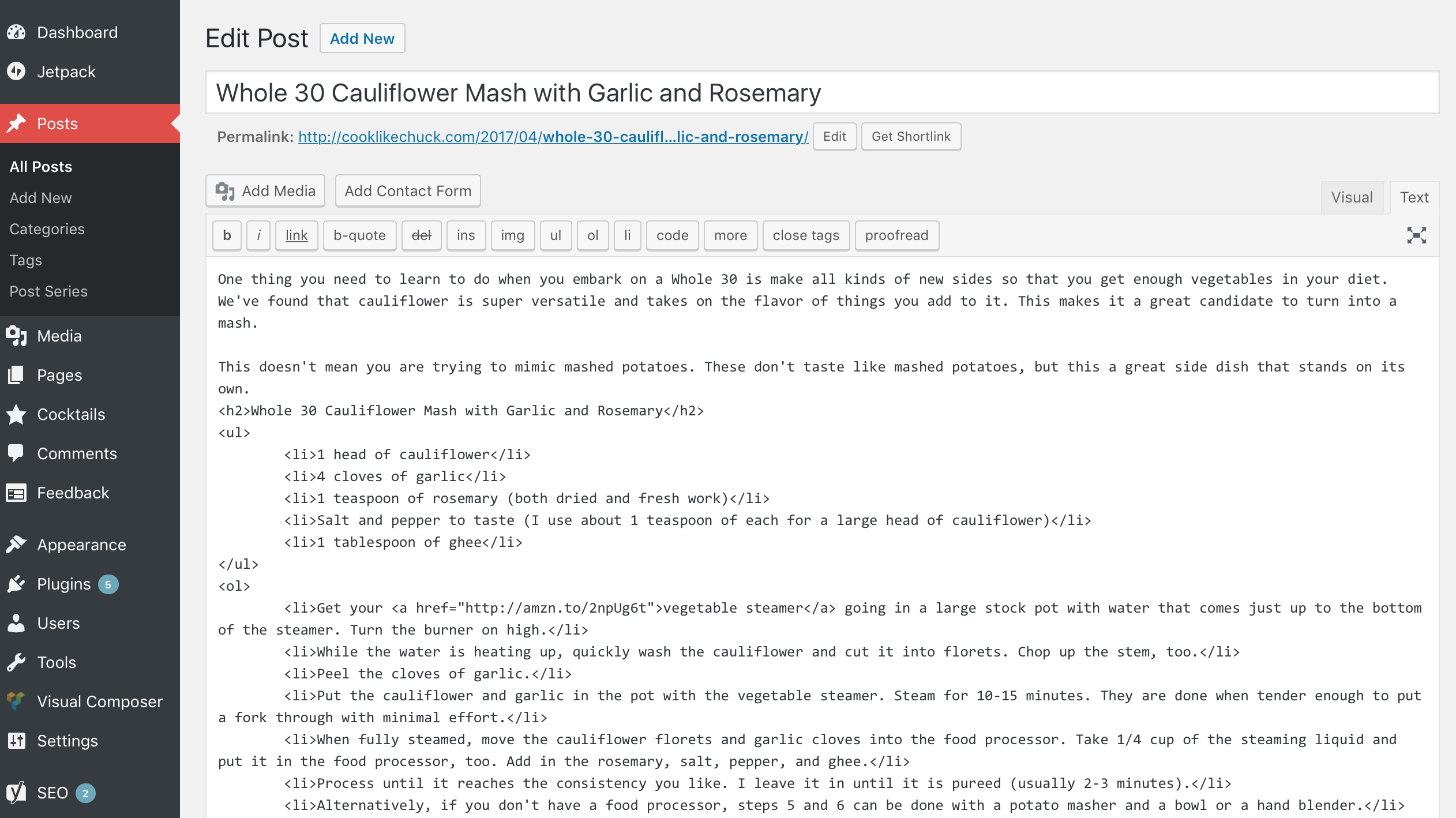
You’ll primarily use HTML in the content editor of Posts and Pages. When you are editing a post or a page, the editor has two options: Visual or Text. Visual comes up by default. If you switch over to the Text tab, you’ll see that your headers, lists, etc are marked up with HTML:
CSS is usually defined and applied in the
style.cssfile inside your WordPress theme folder. That said, if you are just starting out, I recommend you leave thestyle.cssfile alone and install the Jetpack plugin. It includes a module for adding custom CSS to your theme. There are two benefits for doing it this way:- Beginners should stay away from theme files because you can easily crash your site if you don’t know what you are doing. Changes made in the Jetpack CSS module don’t change your theme, they just apply changes on top of it. These changes are easy to remove, so you don’t have to worry about crashing your site.
- These changes are stored in the database, so they’ll bypass cache. Most hosts aggressively cache theme files, so changes made directly to
style.cssmight take some time to show up. Changes applied via Jetpack’s CSS module take effect as soon as they are saved. These changes are also usually applied last, so they take precedent over what is defined in your theme.
The free version of the Jetpack plugin is all you need. Once it is installed, you can click “enable recommended options” and the CSS module should be included in that. If it isn’t, go to Jetpack > Settings > Appearance and toggle on Custom CSS.
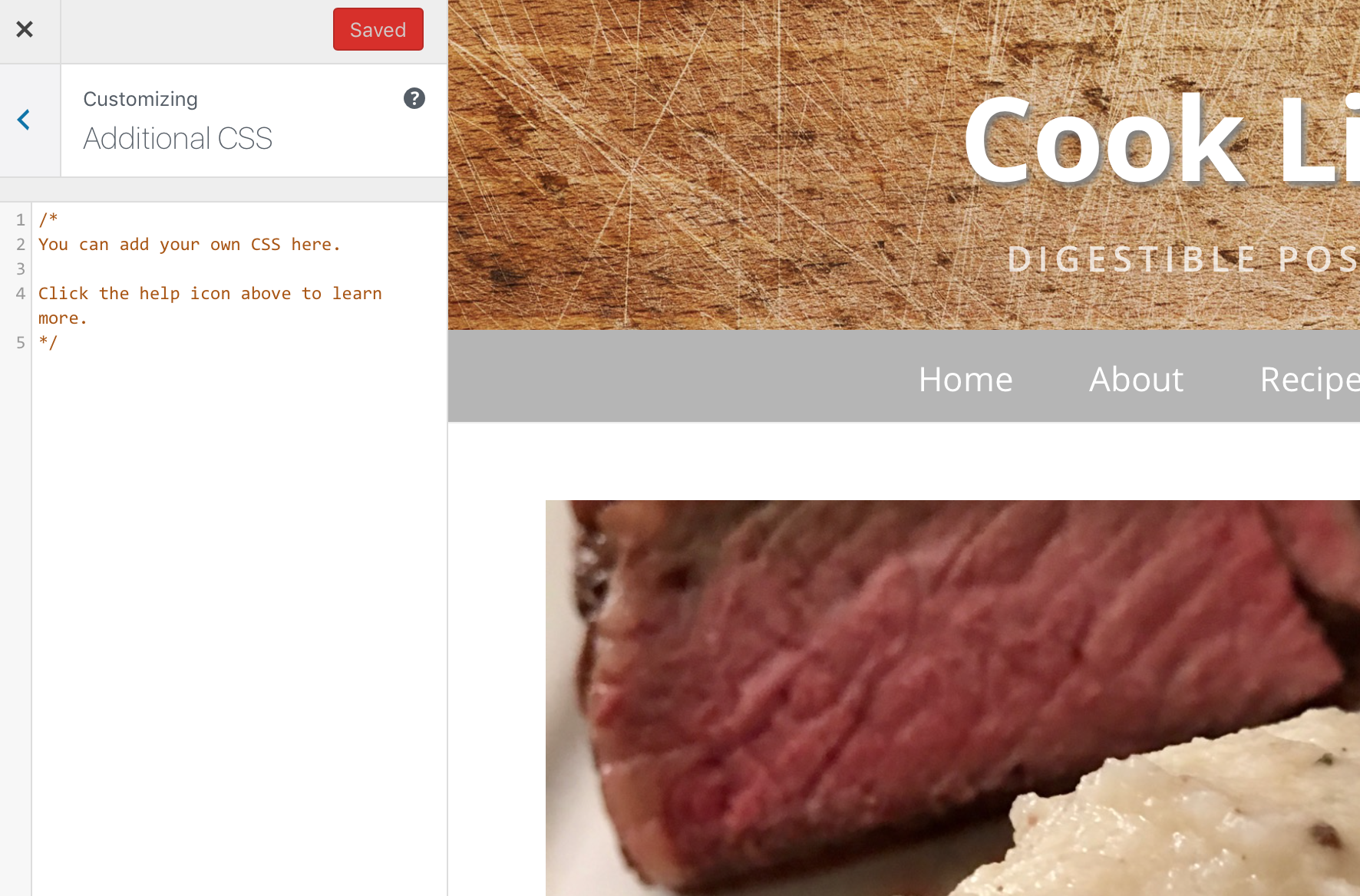
Once it is turned on, you can go to Appearance > Customize in your WordPress Admin sidebar. In the Customizer you’ll see an area for Additional CSS:
Questions
If you have any questions, drop them below in the comments! Or, you can ask them on Stack Overflow and Quora like the rest of the web does 🙂
-
When is the last time you sent a Thank You note?

“Send a thank you note” is one of those pieces of common wisdom we always hear, yet an astonishingly low number of people actually do it.
Let me give a recent example of how a thank you note (even a digital one!) can shape someone’s view of you.
A Tale of Two Groups
Over the past few weeks I emailed the same message to two different groups.
Group A is generally earlier on in their careers. Group B is generally more established in their careers. The email content, open rates, and link clicks were the same, but what stuck out to me was how differently the two groups acted after logging in. Only 2.4% of group A sent me a note afterward, whereas 55.5% of group B sent me a note afterward.
Building Social Capital
The majority of group A read and archived the email. The majority of group B took the interaction as an opportunity to build some social capital.
I didnt expect a reply and I don’t think less of those who didn’t reply. I don’t want to be presumptuous and think I’m important enough to warrant a reply. Heck, there are dozens of emails I just read and archive without responding to every single day.
That said, those who did reply gained some social capital with me. They stick out because they did something very few others took the time to do: Send me a nice note. With a 30 second email, they changed the way I think about them. I haven’t met any of them in person and I don’t interact with them on a daily basis, but I’m willing to go out of my way for those who did actually reply the next time they need help with something.
There is a strong correlation between those who replied and career success (even early in their careers). They know that consistently doing little things to build social capital makes asks and connections easier in the future. Most in group B (and a few in group A) have learned this lesson and made doing little things like this part of their standard operating procedure.
Even though sending a thank you note is common wisdom, few people go through the trouble of actually doing it. With Praxis, I work with a lot of bright young people. Most, even the ones who excel, never send a thank you note. The minority who do stand out.
What opportunities are you missing because you didn’t take 30 seconds to say thanks?
A big thanks to Isaac Morehouse for regularly encouraging me to follow this principle and for his notes and suggestions on an early draft of this post.
-
When is the last time you sent a Thank You note?

-
Yes, There are Stupid Questions

I field a lot of questions. I’m sure you do, too.
In a single day I might get asked about technology recommendations, programming syntax, software integrations, business processes, locating files, and how to set up WordPress. I don’t mind answering these questions, and I try to do so quickly and politely.
Here’s the kicker: At least 80% of these questions can be answered with a simple web search. There already dozens of tutorials, Stack Overflow threads, Quora answers, blog posts, FAQs, and documentation sections covering these topics that can be reached in a few clicks. Most of the time the person asking has not made any attempt to answer the question themselves. I consider these stupid questions.
Back in 9th grade, I asked Mrs. Dispenza a history question while I was doing my homework. She politely asked, “Where have you already looked to find that answer?” I sheepishly admitted that I hadn’t looked anywhere. What she said next has stuck with me ever since:
“You should never ask someone else a question without first attempting to answer it on your own.”
Of course there are exceptions to this. Someone assisting a surgeon in the middle of a surgery shouldn’t stop to research the best way to stop bleeding, he should just ask the surgeon. Sometimes asking a veteran staff member the best process for doing something is better than spending an hour figuring it out through trial and error. There are costs and benefits to every decision. Make sure the comparison lands on the “benefits” side of that scale if you are using someone else’s time and energy.
Do This Before Asking a Question
Before you ask someone a question in the future, follow this mental checklist to make sure it isn’t a stupid question:
- Is the answer this question worth taking someone else’s time and energy for? Will I waste social capital by asking this question?
- Did I make a good faith attempt to answer this question myself?
- Did I demonstrate to the person I’m asking that I tried to answer the question myself and try to pinpoint the source my confusion?
- Instead of asking for a solution to this specific problem, can I ask to be pointed to a resource so I can solve it myself? (Documentation, a specific book, a website)
How to Answer Stupid Questions
Answer politely and quickly
If your first instinct is to tell someone they should have looked the question up before asking you, The Dude has a message for you:

Always answer the question politely and quickly. Be nice and be helpful. Don’t be an asshole.
A crisis is not a time to teach a lesson.
Tensions run high when money and reputations are on the line, so clear thinking is rare during a crisis. When there is a crisis unfolding and someone asks you for help, step in, stay calm, and fix the problem. Don’t waste time teaching people how to research and solve issues on their own–you’ll only frustrate yourself and everyone else.
Follow up afterward with an after action report for the person or team. Detail what happened, what caused it, what the solution was, and what can be done to prevent this issue in the future. Also suggest some resources the person or team can study before the next crisis hits so that they will be better equipped to respond. This report should be added to your documentation or knowledge base. It will likely help everyone in the future.
Follow up with resources that person can use to dive deeper
After answering the question, pass along a book, article, video, or a guide where the questioner can learn more and refer to later.
If the same person asks the same question again in the future, consider responding, “Hey, I remember that we talked about this last week. Did you check out the blog post I sent you? Here is that link again: http://example.com/blog-post/”
Sometimes a dialogue is the best approach
Sometimes dialoguing leads people to answer their own question and sometimes it helps me figure out the source of their misunderstanding. I like to ask,
- “Where have you looked?”
- “What have you tried?”
- “What do you think the best solution is?”
Do you need better documentation?
If you keep getting the same questions over and over, your company or your project might need better documentation. This can come in many forms: Training materials, FAQs, instruction manuals, user guides, standard operating procedures, a wiki, etc.
If you have documentation, keep it up to date and make sure that all staff are kept up to date on additions and changes. Everyone needs to know it exists and referring to it needs to become part of the culture. If you don’t have documentation, make it a priority to write some! Documentation is everyone’s responsibility, not just HR’s.