How to make link posts (or external post links) with Jekyll
I’m an avid reader of Marco.org and Daring Fireball. They both have these nifty posts that link directly to external pages. Now that I have two blogs, a podcast, and occasionally have work published elsewhere, I want to keep a record of these things on my cagrimmett.com blog. Link posts are an excellent way to do that.
Jekyll doesn’t have this capability out of the box, but with a little Liquid magic you can make it happen. I followed Christian-Frederik Voigt’s method. This takes advantage of the ability to create items in each post’s YAML front-matter and use them in template files:
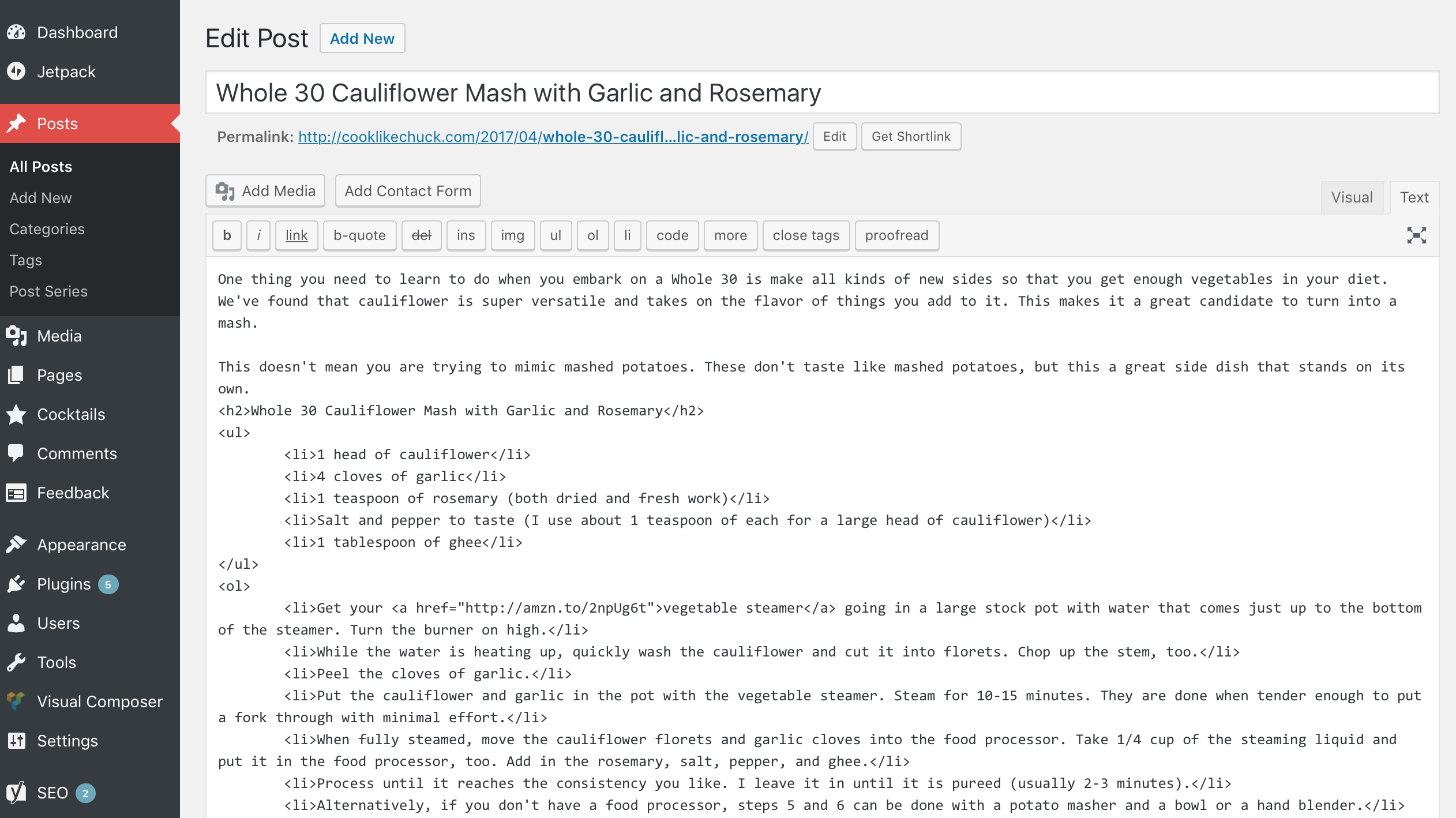
First, create a variable called link: in your YAML front-matter for the post you want to link elsewhere. Fill it in with the link you want to post to link to:
Then anywhere in the template files that generates post headlines, you’ll need to write a conditional to check if the new link: variable is present. If it is, you’ll want to write the headline’s link there (post.link) instead of the post.url. I also added an arrow inside another conditional to specify that this is an outgoing link:
This method works great if you want to have direct links to other places and don’t want a permalink page on your own site that you can reference. I don’t care about that, so I didn’t make this for my site. If you want that, you’ll need to refer to Christian-Frederik Voigt’s method. The short story is that you’ll also need to modify the post and page templates.
Jekyll has a built-in filter called jsonify to turn data into JSON and Liquid has a filter called json. These is pretty useful for turning standard Jekyll output arrays into JSON, but if you need something more customized, you’ll need to build it yourself because Liquid’s ability to create arrays is limited. (Not a criticism, just an observation. It is primarily a templating language.)
For example, I wanted to store the dates I have blog posts for and the number of posts on each of those dates in order to pass it to a heatmap calendar. I couldn’t figure out a way to build that into a single array with Liquid (and I didn’t want to drop down into Ruby), so I figured out a way build JSON manually.
This outputs my blog’s post dates in the Unix timestamp format and displays the number of posts on a given day and leaves the trailing comma off to comply with the JSON standard:
The key to getting the counts right was advancing the counter by 1, comparing the date of the current post to the previous post, outputting the date and the count if they did not match, and if they did match advancing the counter by 1 and comparing again. After the date and count are output, the counter is reset to 0.
Thanks to Eric Davis for advice on using less code and pointing out how I can make the trailing comma if statement more efficient: %if forloop.last == false% , %endif%
He said:
If there’s one bit of “programming advice” I would give to anybody mucking around with this stuff, it’s this: Write as little code as humanly possible. The most bug-free line of code is the line not written.
What I need to ask myself: If something is being repeated, why?
I’m working my way through some data science and visualization books right now. I found that I learn better by doing small projects than I do by copying examples in books, so I designed a little project to apply some of what I learned and to learn some new skills along the way.
My goal was to make a project where I do everything from start to finish: Create my own data set, format it, analyze it, then visualize it. I also wanted to make it fairly common and as automated as possible so it could be repeated by others.
Here is what I came up with: Extracting metadata from my iPhone photos, analyzing it in different ways (days, months, hours, seasons), and visualizing it. I used free tools to do the extraction, formatting, and visualization, then scripted everything with AppleScript and Python to automate it.
Technical Details
You can find the full repository on GitHub. If you have a recent Mac with Photos.app and TextWrangler, you can run the scripts and produce your own charts!
I used AppleScript to loop through photo metadata in Photos.app and write it out to a CSV files that it creates in the same directory as the scripts.
I used TextWrangler’s grep functionality via AppleScript to break apart the date strings into days of the week, dates, and times, and to remove bad or null location strings (lat,long). I know I could have written this in Python, but I didn’t want to reinvent the wheel. TextWrangler’s AppleScript library is very powerful and easy to use.
Python was my tool of choice for analyzing the CSV files in various ways and visualizing the results with one of its plotting libraries, matplotlib.
The map of where photos were taken in the US was generated with D3.js.
Once everything has been generated and saved, AppleScript opens the images in Preview and launches a simple Python webserver to show the map.
The Results
Lessons
I really beefed up my understanding of basic Python (with help from Eric Davis!)
I dusted off my AppleScript knowledge and gave it a workout. I learned that AppleScript has a concept of lists that you can pass into and out of programs. This was the key to launching all of the charts in a single preview window.
This was a great exercise in UX. How can this be both easy to use and easy to interpret?
This was an exercise in thinking programatically. How can this be built in a way that makes it reusable?
I learned how to project location information onto a map with D3.js. I’ve used D3.js for charts before, so this was a good way to expand my skills.
This was a good way to practice my git skills and think through how to structure a project and make executable code.
There is a lot more I can add to this (more mapping options, more ways to count the photos, outputting the photos in a calendar heatmap), but I feel comfortable stopping and moving on because I learned what I wanted to from it and I’m ready to start a new project. I might come back to this in the future and I might not, but either way I’m happy with this.
Cavaets
This analysis is not scientific, it was for fun. Since my photos were taken with different cell phones across non-controlled time periods, I can’t use this analysis to say things like, “I’m more likely to take photos in the spring than the fall.” The truth is that there are photos in here from three springs but only two falls.
I can’t guarantee that my code will work for everyone. It is still a little buggy and hasn’t been tested for all scenarios. I know this and know how I would test it, but this project isn’t big enough to warrant it.
The color palettes I used aren’t bulletproof. If you use F.lux or Night Shift the yellows will blend in to the screen, and if you have visual impairments you might not be able to distinguish between the greens and blues.
Try it for yourself
You can download the repository from GitHub and run it against your Photos.app library. The requirements and instructions are in the README. Let me know if you have any issues and I’ll do my best to help you out.
Last year Amanda and I went to Montana for a week in early May. We started in Yellowstone and then went up to Glacier. It was before the official start of the season and Going to the Sun Road was still closed, but we avoided the crowds, explored the park in solitude, took in the wonderful scenery, and ran into some incredible wildlife.
Here is the best of what I shot over three days in Glacier.
I started a simple Python http server as a background process at the end of a Python script. That was a mistake. Since it isn’t running in an open Terminal window, it is easy to forget about and it will run until you kill the process or reboot your machine. I don’t like that.
Here is how to identify and kill background Python processes in Terminal.app:
Here is a minimalist responsive bar chart with quantity labels at the top of each bar and text wrapping of the food labels. It is actually responsive, it doesn’t merely scale the SVG proportionally, it keeps a fixed height and dynamically changes the width.
For simplicity I took the left scale off. All bars are proportional and are labeled anyway.
Go ahead and resize your window! This has a minimum width of about 530px because of the text labels. Any smaller than that and they are very difficult to read.
The basic HTML
id ="chartID">
The Styles
You’ll see that the axis is actually there but it is white. I found it useful to learn to draw it, but I didn’t want it so I am keeping it hidden.
vardata=[{"food":"Hotdogs","quantity":24},{"food":"Tacos","quantity":15},{"food":"Pizza","quantity":3},{"food":"Double Quarter Pounders with Cheese","quantity":2},{"food":"Omelets","quantity":30},{"food":"Falafel and Hummus","quantity":21},{"food":"Soylent","quantity":13}]
The Javascript Heavy Lifting
This is where D3 really comes in.
Setting the margins, sizes, and figuring out the basic scale.
Setting the axes
Drawing the basic SVG container with the proper size and margins
Scaling the axes
Drawing the bars themselves
varmargin={top:10,right:10,bottom:90,left:10};varwidth=960-margin.left-margin.right;varheight=500-margin.top-margin.bottom;varxScale=d3.scale.ordinal().rangeRoundBands([0,width],.03)varyScale=d3.scale.linear().range([height,0]);varxAxis=d3.svg.axis().scale(xScale).orient("bottom");varyAxis=d3.svg.axis().scale(yScale).orient("left");varsvgContainer=d3.select("#chartID").append("svg").attr("width",width+margin.left+margin.right).attr("height",height+margin.top+margin.bottom).append("g").attr("class","container").attr("transform","translate("+margin.left+","+margin.top+")");xScale.domain(data.map(function(d){returnd.food;}));yScale.domain([0,d3.max(data,function(d){returnd.quantity;})]);//xAxis. To put on the top, swap "(height)" with "-5" in the translate() statement. Then you'll have to change the margins above and the x,y attributes in the svgContainer.select('.x.axis') statement inside resize() below.varxAxis_g=svgContainer.append("g").attr("class","x axis").attr("transform","translate(0,"+(height)+")").call(xAxis).selectAll("text");// Uncomment this block if you want the y axis/*var yAxis_g = svgContainer.append("g") .attr("class", "y axis") .call(yAxis) .append("text") .attr("transform", "rotate(-90)") .attr("y", 6).attr("dy", ".71em") //.style("text-anchor", "end").text("Number of Applicatons"); */svgContainer.selectAll(".bar").data(data).enter().append("rect").attr("class","bar").attr("x",function(d){returnxScale(d.food);}).attr("width",xScale.rangeBand()).attr("y",function(d){returnyScale(d.quantity);}).attr("height",function(d){returnheight-yScale(d.quantity);});
Adding the quantity labels to the top of each bar
This took me a while to figure out because I was originally appending to the rect element. According to the SVG specs this is illegal, so I moved on to appending them after everything else to they’d show on top. The positioning is tricky, too. I eventually found the correct variables to position it close to center. Then text-anchor: middle; sealed the deal.
// Controls the text labels at the top of each bar. Partially repeated in the resize() function below for responsiveness.svgContainer.selectAll(".text").data(data).enter().append("text").attr("class","label").attr("x",(function(d){returnxScale(d.food)+xScale.rangeBand()/2;})).attr("y",function(d){returnyScale(d.quantity)+1;}).attr("dy",".75em").text(function(d){returnd.quantity;});
Responsiveness
The general method for making D3 charts responsive is to scale the SVG down proportionally as the window gets smaller by manipulating the viewBox and preserveAspectRatio attributes. But after digging around on Github for a while, I found a fancier solution that preserves the height and redraws the SVG as the width shrinks.
document.addEventListener("DOMContentLoaded",resize);d3.select(window).on('resize',resize);functionresize(){console.log('----resize function----');// update widthwidth=parseInt(d3.select('#chartID').style('width'),10);width=width-margin.left-margin.right;height=parseInt(d3.select("#chartID").style("height"));height=height-margin.top-margin.bottom;console.log('----resiz width----'+width);console.log('----resiz height----'+height);// resize the chartxScale.range([0,width]);xScale.rangeRoundBands([0,width],.03);yScale.range([height,0]);yAxis.ticks(Math.max(height/50,2));xAxis.ticks(Math.max(width/50,2));d3.select(svgContainer.node().parentNode).style('width',(width+margin.left+margin.right)+'px');svgContainer.selectAll('.bar').attr("x",function(d){returnxScale(d.food);}).attr("width",xScale.rangeBand());svgContainer.selectAll("text")// .attr("x", function(d) { return xScale(d.food); }).attr("x",(function(d){returnxScale(d.food)+xScale.rangeBand()/2;})).attr("y",function(d){returnyScale(d.quantity)+1;}).attr("dy",".75em");svgContainer.select('.x.axis').call(xAxis.orient('bottom')).selectAll("text").attr("y",10).call(wrap,xScale.rangeBand());// Swap the version below for the one above to disable rotating the titles// svgContainer.select('.x.axis').call(xAxis.orient('top')).selectAll("text").attr("x",55).attr("y",-25);}
Wrapping text labels
Wrapping text labels is tricky. The best solution I found is the one Mike Bostock (D3’s creator) describes. I modified it slightly to work with my chart, but the overall solution is the same.
I was asked to help out with some CSS animation. I thought it would be no problem. A few hours at most. Boy was I wrong.
The biggest issue I ran into was that an element that came in from the right (outside the boundaries was hidden by overflow) functioned just fine on desktop Safari and Chrome, but did not appear on iOS unless I ran the debugger and toggled overflow or display properties during the transition. position and z-index made no difference.
I came across this article while researching solutions. The ending shed some light for me:
ensure you don’t have a CSS property such as transform on the root element. It’s more than likely that this is creating a new stacking context for the enclosed elements.
Whelp, that sucks. CSS animations rely almost solely on the transform property to operate. I played around a few more hours trying different techniques with containers and positioning. The only thing that sort of worked was using translate3d() and keeping the element active and in view the entire time. Then and only then did it work the same on iOS and desktop. If it paused or was hidden even for a moment, I couldn’t get it to come back.
Safari on iOS is doing something funky with stacking when the transform property is involved and I couldn’t find any solid documentation on what is happening in order to come up with a good solution.
If anyone has faced this beast and won, please drop me a line! I can’t post the specific elements here because it was client work, but I’m happy to discuss it one-on-one.
I encountered a strange problem today. Someone could access their website from their cell phone but not their laptop and said a friend a few states away also couldn’t reach it. But I could reach it just fine.
When we started digging into what was going on, I found that he was using Google’s public DNS. When I switched to Google’s DNS, I couldn’t reach the site either.
In the days.animate section, I make sure to prevent the circle from ever reaching 100%. It will get extremely close as the years pass and the numerator comes closer and closer to the denominator, but the denominator will always be slightly larger. Thanks to Eric Davis for helping me come up with the solution.
Javascript Counter with circular progress
The results:
The javascript, which counts the time since a certain date:
I have multiple old Aperture photo libraries that I canât really use anymore. Aperture doesnât run on El Capitan and I donât have any system that it can run on. Iâve been using Adobe Lightroom for the past four years anyway. So I did some research into options into how I can retrieve my photos.
Opening the package
The great thing about Aperture was that it always kept the master images and applied edits on the fly. So I knew that I could get the master images out of Aperture. The way you can get to them is right-clicking on the library file and selecting âShow Package Contents.â Then you can take the masters folder and copy it out of the library.
I’ve been on vacation and spend the last two days catching up and not doing a lot of learning, so I’ve been lazy in putting up TIL posts. That is over. (I did, however, push some updates to my Apple Photos Analysis project.) Here is a small collection of things I learned in the last week.
Amending commits
Say you forgot to add a file to your last commit or you made a typo in your commit message. You can amend it!
Make the necessary changes, then do this:
git commit --amend-m"Commit message here"
If you’ve already pushed it to an external repository, you’ll need to force the push since the external repo will look like it is ahead. If branch protection is turned on, you’ll need to make a new commit. Make sure you aren’t overwriting anything important!
Adding data labels to the top of bar charts in Matplotlib
Matplotlib is a great plotting library for Python.
defautolabel(rects):# attach some text labels forrectinrects:height=rect.get_height()plt.text(rect.get_x()+rect.get_width()/2.,5+height,'%d'%int(height),ha='center',va='bottom')rect=plt.bar(xs,counted_hours,color=color)# To use: autolabel(rect)
Saving images in matplotlib
plt.savefig('directory/filename.png')
Counting items that match a regex pattern
defhour_finder(regex,lines):time_counter=0forlinlines:ifre.match(regex,l):time_counter=time_counter+1returntime_counter# To use hour_finder('^8:[0-9]{2,}:[0-9]{2,}sPM',time_csv)
Splitting!
Splitting by a space ' ' and choose the item after the split ([1] because counting starts at 0)
See it in action below. Styling the buttons will be left as an exercise to the reader:
This is Div-1!!!
Lorem ipsum dolor sit amet, consectetur adipiscing elit. Phasellus tempus, mauris in sollicitudin commodo, eros mauris euismod arcu, eget faucibus enim tellus a turpis. Suspendisse malesuada interdum elit sit amet rutrum. Nam ut elit lobortis, lobortis nisi sed, tincidunt nibh. In consequat eleifend quam, vestibulum efficitur velit scelerisque nec. Quisque quis rutrum mauris, ut ultricies ipsum. Cras interdum ipsum in diam venenatis fermentum. Vestibulum ante ipsum primis in faucibus orci luctus et ultrices posuere cubilia Curae; Donec mollis tincidunt est vitae dapibus. Aenean cursus, ipsum ac pellentesque malesuada, mauris magna pretium nunc, eu mollis dolor ipsum sit amet felis. Vestibulum sed erat eu dolor condimentum viverra blandit sit amet mauris. In arcu nisi, sollicitudin a dui a, laoreet pellentesque libero.
Woah, this is Div-2!~!~!
Suspendisse bibendum sem vitae tellus maximus dictum. Nunc vestibulum tellus sem, sit amet efficitur ligula porta sed. Aliquam erat volutpat. Suspendisse in enim elementum, iaculis magna eu, placerat enim. Aliquam auctor ultricies ligula eleifend sodales. Vestibulum at leo leo. Praesent sollicitudin ipsum ut maximus malesuada.
If you copied this example and it isn’t working, make sure you gave the divs and buttons the correct classes and you included jQuery in your header:
-- Getting path to this filetellapplication"Finder"togetfolderof(path tome)as Unicode textsetcurrentLocationtoresultsetcurrentPOSIXtoPOSIXpathofcurrentLocation
Running other AppleScript files
run scriptfile"HD:path:to:file.scpt"-- How it is used with above file pathrun scriptfile(currentLocation&"reformat_with_textwrangler.scpt")
Running multiple shell commands
do shell script"command 1; command 2;"-- How it is used with above file path to change directory and run a scriptdo shell script"cd ""ed formofcurrentPOSIX&"; python "&"count_days.py"
Given that the lists days and count are built above by the Counter(), you can pass them to matplotlib for charting:
frommatplotlibimportpyplotasplt######## Bar Chart ######## xs=[i+0.1fori,_inenumerate(days)]plt.bar(xs,count)plt.ylabel("Number of photos taken")plt.title("Photo frequency by day")plt.xticks([i+0.5fori,_inenumerate(days)],days)plt.savefig('img/weekdays_bar.png')plt.clf()######## Pie chart ######## colors=['red','orange','green','purple','lightcoral','lightskyblue','yellowgreen']explode=[0,0,0,0,0,0.1,0]plt.pie(count,explode=explode,labels=days,colors=colors,autopct='%1.1f%%')plt.axis('equal')plt.suptitle("Percent of total photos taken on a given day of the week",fontsize=18)plt.savefig('img/weekdays_pie.png')
If you donât want to save the images, you could just show them instead with plt.show()
plt.clf() clears the figure so you can plot something else on it. Otherwise youâd need to close it before continuing. plt.close() can do that.
Depending on the source CSV, the above creates these two charts:
I took a 10-day break from my TILs and now I’m reinvigorated and back on track. In the past 10 days I spent a lot of time doing things I already knew how to do, but I also worked on a small project related to data visualization to see if I could apply some things I learned over the past few months. The result was my recent blog post on Steph Curry’s stats.
A new project
I got a lot of good feedback on Facebook on some more things I can explore (and about how little I understand basketball.) I decided to work on another personal project to apply some of the data science I’ve been learning by reading Joel Grus’s Data Science from Scratch. I decided to find some data (photo dates and locations), extract it (AppleScript), format it (grep FTW), analyze it (forthcoming in Excel and Python), then visualize the insights (Python and/or D3). You can follow my progress on GitHub.
Dealing with files in AppleScript
AppleScript natively deals with file paths with colons: Macintosh HD:usr:local:bin: If you get a file path then want to pass it to the shell, you’ll first need to turn it into a POSIX path:
If you want to create a file in the same folder as a script you are running, you might have to jump back and forth between AppleScript paths and POSIX paths because it is easier to make files by using the command do shell script. Notice the use of quoted form of, which quotes the file path and keeps you clear of pesky errors caused by characters in the path that need to be escaped:
-- Creating the file in the same folder as this scriptsetscriptPathtoPOSIXpathof((path tomeas text)&"::")do shell script"> ""ed formofscriptPath&"photo_dates_location.csv"
Then if you want to get the path to the file you just created and make an it an alias to reference later:
Suppose you have a [spreadsheet full of photos, the date they were taken, and the days of the week they were taken on] (https://github.com/cagrimmett/apple_photos_analysis) and you want to count how many were taken on Monday, Tuesday, etc. Then you’d use the function COUNTIFS(range,argument) to work it out.
Example: Suppose I have the days of the week in column A and cell H2 contained the word I was looking for, Monday. Then my formula would be:
=COUNTIFS(A2:A8500,H2)
I quickly repeated this for the cells that contained the values for the other days of the week and got instant results:
I donât really follow basketball. But since Iâve been hearing a lot about this Steph Curry guy in the news, on Facebook, and on podcasts, I decided to look into his stats. And since Iâm trying to teach myself about data science and visualization, I thought Iâd visualize some of his stats to see what I could learn.
From what I could tell Steph Curry had a decent start to his career, but while his was above-average, he didnât seem to be a star. Then after he got injured during the 2011-12 season, he must have had a revelation because he came back the next season and made a name for himself.
The next season he started taking radically more three point shots and it paid off for him. His overall points went up as he made more three point attempts:
Here are the number of three point attempts vs three point shots made by season with the circles scaled by the number of overall points he made that season:
01002003004005006007000501001502002503002009201020112012201320142015
Even though he took more shots, his overall shooting percentage and percentage on three-pointers has increased recently, but not dramatically. It has fluctuated over his career:
Many current players have him beat on overall shooting percentage and a few guys are rivaling him on three point percentage (Jason Kapono, Steve Novak, Kyle Korver.)
So if you canât stand out by being more accurate than everyone else, what can you do? In a game that is driven by the final overall score instead of percentages, being about as accurate as everyone else but willing to shoot more pays off. Curry is willing to take more long shots than anyone else in the league, by far.
Here are Curryâs 3 point attempts vs 3 point shots made compared with the other top shooters in the league for the past four years:
480500520540560580600620640660680700180200220240260280300320Damian Lillard, PGDamian Lillard, PGDamian Lillard, PGDamian Lillard, PGGerald Green, SFJames Harden, SGJames Harden, SGJames Harden, SGKlay Thompson, SGKlay Thompson, SGKlay Thompson, SGKlay Thompson, SGPaul George, SFRyan Anderson, PFStephen Curry, PGStephen Curry, PGStephen Curry, PGStephen Curry, PGTrevor Ariza, SFWesley Matthews, SG
2012201320142015
Here is the same data visualized as a bump chart. You can see the other top shooters jostling positions, but Curry has been king for the past four years:
Winter 2012Spring 2013Winter 2013Spring 2014Winter 2014Spring 2015Winter 2015Damian Lillard, PGGerald Green, SFJames Harden, SGKlay Thompson, SGPaul George, SFRyan Anderson, PFStephen Curry, PGTrevor Ariza, SFWesley Matthews, SG
I realize that there is more to the game than just taking more shots. You need incredible talent and skill to keep up a percentage like Curry’s from anywhere on the court. Given his success, I’m willing to bet that we’ll see more players trying to emulate his approach next season.
Side note: James Harden seems to be using the same strategy, except with two point shots and free throws. It is paying off for him, too. He is currently the number two leader in the NBA, right behind Steph Curry.
Sources:
For example: here is how I’d combine columns of hours and minutes and put a colon in-between: =[@Hour] & ":" & [@Minute]
Convert hours.minutes to hh:mm:ss in Excel
Take 275.75 and convert it to 275:45 =CELL/24 converts the hours.minutes to days Then you format the column by Custom > Time > 37:30:55 (hh:mm:ss)
SQL Dates, Concatenation, and Grouping
I learned some useful things today in SQL: SUM(), CONCAT_WS() to get CSV output, DATE() to get the date part of a datetime stamp, and GROUP BY to get the sums grouped by another column
There are almost always multiple paths to your end goal. If you are stuck spinning your wheels on one path, try another.
If you get stuck, write down your end goal and then write down the discrete steps you need to get there. Then, at each bullet point, ask, “How can this step be eliminated or completed in a better way?”
Every time I go through this exercise I get some traction and start moving forward again.