Archives

Blog index

Blog

  • Toggling divs with jQuery


    Toggling divs with jQuery

    This isn’t new, but I use it enough that I like to keep a basic snippet handy.

    This does the following:

    • Hides div-1 and div-2 on page load.
    • Opens div-1 and closes div-2 when button-1 is clicked
    • Opens div-2 and closes div-1 when button-2 is clicked
    $( document ).ready(function() { 	$('.div-1').hide(); 	$('.div-2').hide(); 	$('.button-1').click(function() { 		$('.div-1').slideDown(); 		$('.div-2').slideUp(); 	}); 	$('.button-1').click(function() { 		$('.div-1').slideDown(); 		$('.div-2').slideUp(); 	}); });

    See it in action below. Styling the buttons will be left as an exercise to the reader:

    This is Div-1!!!

    Lorem ipsum dolor sit amet, consectetur adipiscing elit. Phasellus tempus, mauris in sollicitudin commodo, eros mauris euismod arcu, eget faucibus enim tellus a turpis. Suspendisse malesuada interdum elit sit amet rutrum. Nam ut elit lobortis, lobortis nisi sed, tincidunt nibh. In consequat eleifend quam, vestibulum efficitur velit scelerisque nec. Quisque quis rutrum mauris, ut ultricies ipsum. Cras interdum ipsum in diam venenatis fermentum. Vestibulum ante ipsum primis in faucibus orci luctus et ultrices posuere cubilia Curae; Donec mollis tincidunt est vitae dapibus. Aenean cursus, ipsum ac pellentesque malesuada, mauris magna pretium nunc, eu mollis dolor ipsum sit amet felis. Vestibulum sed erat eu dolor condimentum viverra blandit sit amet mauris. In arcu nisi, sollicitudin a dui a, laoreet pellentesque libero.

    Woah, this is Div-2!~!~!

    Suspendisse bibendum sem vitae tellus maximus dictum. Nunc vestibulum tellus sem, sit amet efficitur ligula porta sed. Aliquam erat volutpat. Suspendisse in enim elementum, iaculis magna eu, placerat enim. Aliquam auctor ultricies ligula eleifend sodales. Vestibulum at leo leo. Praesent sollicitudin ipsum ut maximus malesuada.


    If you copied this example and it isn’t working, make sure you gave the divs and buttons the correct classes and you included jQuery in your header:

     
  • Javascript Counter


    Today I learned:

    Javascript Counter

    The results:

    00

    days

    00

    hours

    00

    minutes

    00

    seconds

    The javascript, which counts the time since a certain date:

    document.addEventListener("DOMContentLoaded", function(event) {   // Month,Day,Year,Hour,Minute,Second   upTime('Nov,10,2015,00:00:00');  }); function upTime(countTo) {   now = new Date();   countTo = new Date(countTo);   difference = (now-countTo);    days=Math.floor(difference/(60*60*1000*24)*1);   hours=Math.floor((difference%(60*60*1000*24))/(60*60*1000)*1);   mins=Math.floor(((difference%(60*60*1000*24))%(60*60*1000))/(60*1000)*1);   secs=Math.floor((((difference%(60*60*1000*24))%(60*60*1000))%(60*1000))/1000*1);    document.getElementById('days').firstChild.nodeValue = days;   document.getElementById('hours').firstChild.nodeValue = hours;   document.getElementById('minutes').firstChild.nodeValue = mins;   document.getElementById('seconds').firstChild.nodeValue = secs;    clearTimeout(upTime.to);   upTime.to=setTimeout(function(){ upTime(countTo); },1000); }

    The elements it targets:

     id="countup"> 	 class="part"> 	   id="days">00

    class="label"> class="timeRefDays">days

    class="part"> id="hours">00

    class="label"> class="timeRefHours">hours

class="part"> id="minutes">00

class="label"> class="timeRefMinutes">minutes

class="part"> id="seconds">00

class="label"> class="timeRefSeconds">seconds

And the styles to display it:

#countup { 	margin-left: auto; 	margin-right: auto; 	text-align: center;     font-family: "Lato",Helvetica,Arial,sans-serif; } #countup p { 	display: inline-block; 	padding: 0px; 	margin: 0; 	font-size:100px; 	line-height: 100px; 	text-align: center; } #countup #seconds, #countup .timeRefSeconds { 	color:red; }  #countup .part { 	display: inline-block; 	text-align: center; 	width: 23%; } #countup .label p{ 	font-size: 30px; }  @media only screen and (max-width: 960px) {  	#countup p { 		font-size: 60px; 		line-height: 60px; 	} 	#countup .label p{ 		font-size: 20px; 	}  }  @media only screen and (max-width: 500px) {  	#countup p { 		font-size: 45px; 		line-height: 45px; 	} 	#countup .label p{ 		font-size: 16px; 	} }

  • Running other scripts with AppleScript


    Today I learned:

    Getting current folder in AppleScript

    -- Getting path to this file tell application "Finder" to get folder of (path to me) as Unicode text set currentLocation to result set currentPOSIX to POSIX path of currentLocation

    Running other AppleScript files

    run script file "HD:path:to:file.scpt" -- How it is used with above file path run script file (currentLocation & "reformat_with_textwrangler.scpt")

    Running multiple shell commands

    do shell script "command 1; command 2;" -- How it is used with above file path to change directory and run a script do shell script "cd " & quoted form of currentPOSIX & "; python " & "count_days.py"
  • Reading CSVs, counting, lambda expressions, and plotting with Python


    Today I learned a lot in Python

    Get current directory

    import os os.getcwd()

    Reading CSVs in Python

    import csv with open('/photo_dates_location.csv') as f:     reader = csv.reader(f, delimiter=',', quotechar='"')     reader.next() #skip header     day_csv = [row[0] for row in reader]

    Counting in Python

    Using Counter to create a list of unique items and counts by appending items to the lists:

    import counter days = [] count = [] for (k,v) in Counter(day_csv).iteritems():     days.append(k)     count.append(v)

    Ordering lists with a lambda expression

    According to Eric Davis the lambda expressionArchived Link is a good way to make quick expressions on the fly for organizing things like the Counter lists:

    day_number = { 'Monday': 1, 'Tuesday': 2, 'Wednesday': 3, 'Thursday': 4, 'Friday': 5, 'Saturday': 6, 'Sunday': 7 } days_sorted = sorted(Counter(day_csv).iteritems(), key=lambda e: day_number[e[0]])

    Plotting with Python

    Given that the lists days and count are built above by the Counter(), you can pass them to matplotlib for charting:

    from matplotlib import pyplot as plt  ######## Bar Chart ######## xs = [i + 0.1 for i, _ in enumerate(days)] plt.bar(xs, count) plt.ylabel("Number of photos taken") plt.title("Photo frequency by day") plt.xticks([i + 0.5 for i, _ in enumerate(days)], days) plt.savefig('img/weekdays_bar.png') plt.clf()  ######## Pie chart ######## colors = ['red', 'orange', 'green', 'purple', 'lightcoral', 'lightskyblue', 'yellowgreen'] explode = [0, 0, 0, 0, 0, 0.1, 0] plt.pie(count, explode=explode, labels=days, colors=colors, autopct='%1.1f%%') plt.axis('equal') plt.suptitle("Percent of total photos taken on a given day of the week", fontsize=18) plt.savefig('img/weekdays_pie.png')
    • If you don’t want to save the images, you could just show them instead with plt.show()
    • plt.clf() clears the figure so you can plot something else on it. Otherwise you’d need to close it before continuing. plt.close() can do that.

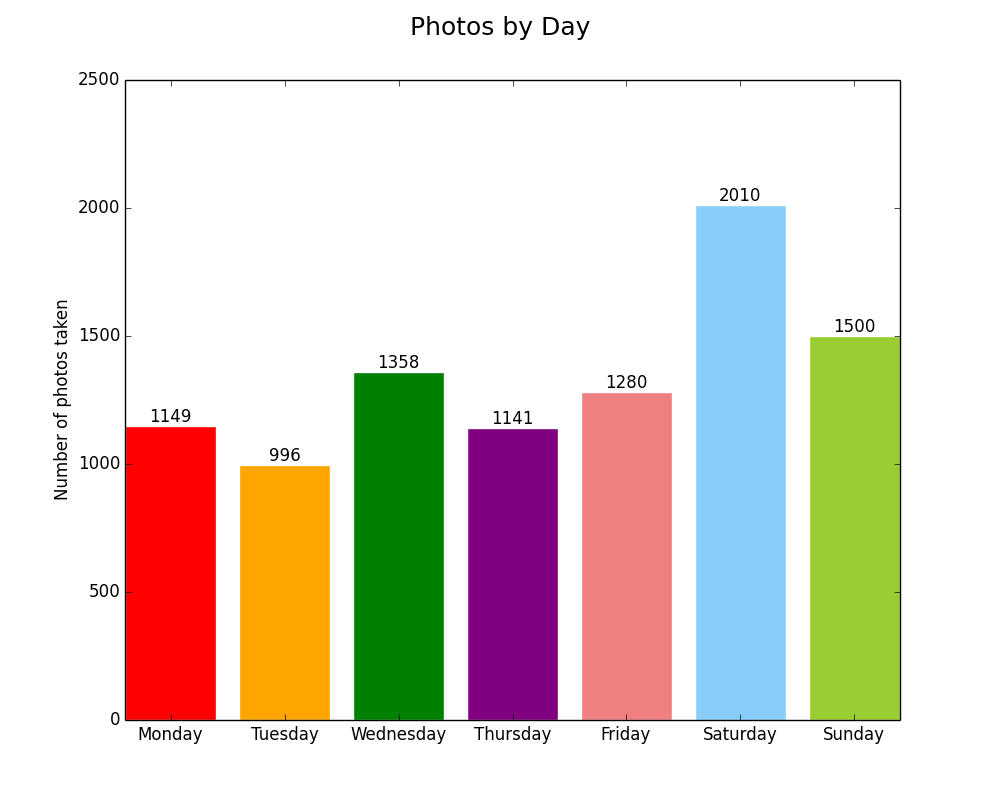
    Depending on the source CSV, the above creates these two charts: Photos by day of week count Photos by day of week percentage

  • Dealing with Files in AppleScript and Conditional Counts in Excel


    I took a 10-day break from my TILs and now I’m reinvigorated and back on track. In the past 10 days I spent a lot of time doing things I already knew how to do, but I also worked on a small project related to data visualization to see if I could apply some things I learned over the past few months. The result was my recent blog post on Steph Curry’s stats.

    A new project

    I got a lot of good feedback on Facebook on some more things I can explore (and about how little I understand basketball.) I decided to work on another personal project to apply some of the data science I’ve been learning by reading Joel Grus’s Data Science from Scratch. I decided to find some data (photo dates and locations), extract it (AppleScript), format it (grep FTW), analyze it (forthcoming in Excel and Python), then visualize the insights (Python and/or D3). You can follow my progress on GitHub.


    Dealing with files in AppleScript

    AppleScript natively deals with file paths with colons: Macintosh HD:usr:local:bin: If you get a file path then want to pass it to the shell, you’ll first need to turn it into a POSIX path:

    set a to "Macintosh HD:usr:local:bin:"  set p to POSIX path of a     -- Output: "/usr/local/bin/"

    If you want to create a file in the same folder as a script you are running, you might have to jump back and forth between AppleScript paths and POSIX paths because it is easier to make files by using the command do shell script. Notice the use of quoted form of, which quotes the file path and keeps you clear of pesky errors caused by characters in the path that need to be escaped:

    -- Creating the file in the same folder as this script set scriptPath to POSIX path of ((path to me as text) & "::") do shell script "> " & quoted form of scriptPath & "photo_dates_location.csv"

    Then if you want to get the path to the file you just created and make an it an alias to reference later:

    set filePath to ((path to me as Unicode text) & "::") & "photo_dates_location.csv" set theFile to filePath as alias

    Conditional counting in Excel

    Suppose you have a [spreadsheet full of photos, the date they were taken, and the days of the week they were taken on] (https://github.com/cagrimmett/apple_photos_analysis) and you want to count how many were taken on Monday, Tuesday, etc. Then you’d use the function COUNTIFS(range,argument) to work it out.

    Example: Suppose I have the days of the week in column A and cell H2 contained the word I was looking for, Monday. Then my formula would be:

    =COUNTIFS(A2:A8500,H2) 

    I quickly repeated this for the cells that contained the values for the other days of the week and got instant results:

    Day Count
    Monday 900
    Tuesday 906
    Wednesday 1079
    Thursday 1082
    Friday 1186
    Saturday 1918
    Sunday 1331
  • Steph Curry’s Advantage (Or How to Become a Leader in the NBA)


    I don’t really follow basketball. But since I’ve been hearing a lot about this Steph Curry guy in the news, on Facebook, and on podcasts, I decided to look into his stats. And since I’m trying to teach myself about data science and visualization, I thought I’d visualize some of his stats to see what I could learn.

    From what I could tell Steph Curry had a decent start to his career, but while his was above-average, he didn’t seem to be a star. Then after he got injured during the 2011-12 season, he must have had a revelation because he came back the next season and made a name for himself.

    The next season he started taking radically more three point shots and it paid off for him. His overall points went up as he made more three point attempts:

    Here are the number of three point attempts vs three point shots made by season with the circles scaled by the number of overall points he made that season:

    Even though he took more shots, his overall shooting percentage and percentage on three-pointers has increased recently, but not dramatically. It has fluctuated over his career:

    Many current players have him beat on overall shooting percentage and a few guys are rivaling him on three point percentage (Jason Kapono, Steve Novak, Kyle Korver.)

    So if you can’t stand out by being more accurate than everyone else, what can you do? In a game that is driven by the final overall score instead of percentages, being about as accurate as everyone else but willing to shoot more pays off. Curry is willing to take more long shots than anyone else in the league, by far.

    Here are Curry’s 3 point attempts vs 3 point shots made compared with the other top shooters in the league for the past four years:

    Here is the same data visualized as a bump chart. You can see the other top shooters jostling positions, but Curry has been king for the past four years:

    I realize that there is more to the game than just taking more shots. You need incredible talent and skill to keep up a percentage like Curry’s from anywhere on the court. Given his success, I’m willing to bet that we’ll see more players trying to emulate his approach next season.


    Side note: James Harden seems to be using the same strategy, except with two point shots and free throws. It is paying off for him, too. He is currently the number two leader in the NBA, right behind Steph Curry.

    Sources:

    Tools:

  • Excel formulas to combine columns and convert time, More SQL functions


    Today I learned:

    Excel Formula to Combine Columns

    =[@Column1] & [@Column2]

    For example: here is how I’d combine columns of hours and minutes and put a colon in-between: =[@Hour] & ":" & [@Minute]


    Convert hours.minutes to hh:mm:ss in Excel

    Take 275.75 and convert it to 275:45 =CELL/24 converts the hours.minutes to days Then you format the column by Custom > Time > 37:30:55 (hh:mm:ss)


    SQL Dates, Concatenation, and Grouping

    I learned some useful things today in SQL: SUM(), CONCAT_WS() to get CSV output, DATE() to get the date part of a datetime stamp, and GROUP BY to get the sums grouped by another column

    SELECT SUM(calls), username  FROM scoreboard_calls GROUP BY username;  SELECT DATE(time), SUM(calls) FROM scoreboard_calls GROUP BY DATE(time);  SELECT CONCAT_WS(',',SUM(calls),username) "calls,user" FROM scoreboard_calls GROUP BY username ORDER BY username, SUM(calls);
  • Aliases in SQL and Sorting Tables with jQuery


    Today I learned:

    Aliases for Tables in SQL

    In your FROM statements, you can give tables temporary aliases to make them easier to refer to throughout the rest of the query using AS:

    SELECT o.OrderID, o.Total, m.MemberName FROM Members AS m, Orders AS o WHERE m.MemberName="John Smith" AND m.MemberID=o.MemberID ORDER BY o.OrderID;

    Sorting tables with jQuery

    This Tablesorter jQuery plugin is nifty. It make sorting tables on the fly quick and easy. Tablesorter.com lays out all of the specs.

    Lay out your table with

    and

    tags, then tell tablesorter where to find your table:

    $(document).ready(function()      {          $("#myTable").tablesorter();      }  ); 

    See it in action:

    ID Name Age Skill
    1 Jessica 31 SQL
    2 Frank 68 TCL
    3 Jason 12 jQuery
    4 Tim 43 PHP

  • There are Multiple Paths to the End Goal


    Today I learned:

    There are almost always multiple paths to your end goal. If you are stuck spinning your wheels on one path, try another.

    If you get stuck, write down your end goal and then write down the discrete steps you need to get there. Then, at each bullet point, ask, “How can this step be eliminated or completed in a better way?”

    Every time I go through this exercise I get some traction and start moving forward again.

  • Summing with Filters in Excel, Reminding Yourself “Why”


    Today I learned:

    Summing in Excel with Filters

    If you’ve ever tried to write a sum() function in Excel while you have filters on, you likely didn’t get the result you expected. The sum() function adds up what is in the raw cells. It does not take whether or not they’ve been hidden via a filter into account.

    subtotal() is the function you are looking for. Specifically, subtotal(9,range). The 9 refers to sum for hidden (not at a result of filtering, though) and non-hidden rows. See the documentation. subtotal() functions only on the results of filtered data.

    =SUBTOTAL(9,G1670:G640501) gave me the sum of the the filtered data from G1670 to G640501. (You can see why filtering would be important with such a large data set!)


    Remind yourself why

    Sometimes I spend too much time and effort trying to convince myself to do something I don’t want to do. This leads to general angst and despair.

    My wife reminded me yesterday that the best way of convincing myself is to reflect on why I’m doing it in the first place.

    Whatever your reason why is, as long as it outweighs the cost of not doing it, you’ll get over it and find a way. I keep an index card with some why bullet points on it nearby to keep things in perspective.

  • Textures and Colors of Yellowstone


    Last year Amanda and I went to Montana for a week in early May and visited Yellowstone for a couple days before the official start of the summer season. It was chilly and some roads were closed due to snow, but we avoided the crowds and got to explore the park in relative solitude.

    I haven’t shot photos much since graduating from Hillsdale, so I decided to take my camera along. Like any other skill, you need to practice photography regularly so you don’t lose your sense of composition, light, and technical settings like aperture and shutter speed. It was frustrating to discover that I’ve lost some of the edge that I worked so hard to hone in high school and college, but it was nice to put my gear through its paces again.

    Here is the best of what I shot over two days in Yellowstone. I took a few landscapes, but I mostly focused on the colors and textures I encountered.

    Bison Calf in Yellowstone

    Yellowstone Texture

    Yellowstone Texture

    Yellowstone Texture

    Yellowstone Texture

    Yellowstone Texture

    Yellowstone Texture

    Yellowstone Texture

    Yellowstone Texture

    Yellowstone Texture

    Yellowstone Texture

    Around the Norris Geyser Basin

    Yellowstone Texture

    Yellowstone Texture

    Yellowstone Texture

    Yellowstone Texture

    Yellowstone Texture

    Yellowstone Texture

    Yellowstone Texture

    Yellowstone Texture

    Snow below the Lower Falls in Yellowstone

    Yellowstone Colors

    Misty hills along Rt 89 in Montana

    We also drove down into Grand Teton National Park for a little while:

    Storm in the Tetons

    Storm in the Tetons

  • Snack Time Episode 1 – Supreme Court Nominations


  • Hiding Categories from the Jekyll Paginator, Unless, and Insert statements


    Today I learned:

    Hiding Categories from Paginator

    According to the Jekyll docs, the jekyll-paginator plugin does not support categories or tags. That means there is no way to exclude a category as a whole. You can only exclude posts individually by including hidden: true in each post’s YAML front-matter.

    I’m hiding all of my TIL posts from the front page of my site, so I did a global find and replace to accomplish it.

    Mirror of If statement in Liquid

    Liquid has a neat concept that is the inverse of an If statement. It executes if a condition is not met.

    {% unless post.categories contains 'TIL' %} 	Code here to display all the things! {% endunless %}

    Inserting via mysqli()

    Using the mysqli() function I wrote about yesterday, here is how to insert something into a table:

     $connect = new mysqli($server, $db_username, $password, $db); $connect->query("INSERT INTO `table_name` (username) VALUES ('$user');");

    Make sure your variables are sanitized first! You don’t want someone doing a SQL injection.

    Eric Davis told me that mysqli() is the old way of doing things and I should check out PDO instead.

  • Connecting and Writing to MySQL with PHP


    Today I learned:

    Connecting to MySQL with PHP

     $server = "localhost"; $username = "username"; $password = "password"; $db = "dbname";  //connect $connect = new mysqli($server, $username, $password, $db);  //Check Connection if ($connect->connect_error) { 	die("The connection failed: " . $connect->connect_error); }

    Check if a table exists and create it if not

    This checks for a table called scorecard_test and creates it if it doesn’t exist. The SQL parameters for the columns are:

    • An integer called ID that is the primary key and auto increments
    • A username that can’t be NULL
    • A column called counter that has a default value of 1 if there is nothing passed, and the length can’t be longer than one digit
    • A column that holds the current timestamp.
     // SQL syntax $sql = "CREATE TABLE IF NOT EXISTS scorecard_test ( id int(11) NOT NULL AUTO_INCREMENT PRIMARY KEY, username varchar(255) NOT NULL, counter int(1) NOT NULL DEFAULT 1, time TIMESTAMP )";  // Connecting, sending query, showing errors, and closing connection if ($connect->query($sql) === TRUE) { 	echo "Done!"; } else { 	echo "Error: " . $connect->error; }  $connect->close();
  • WordPress Plugins, Development Planning for New Developers


    Today I learned:

    Development planning for new developers

    Philosophies like Agile Development are great for teams working on large projects, but for someone just getting started with development and working on small projects, they can be a little much. For situations like this, Readme Driven Development strikes the right balance of planning out your project, writing documentation, and actually doing the work.

    Write your Readme first! (H/t to Eric Davis for telling me about this.)


    WordPress Plugin Basics

    I have a food & drink website where I post regularly. Lately I’ve been trying lots of kinds of coffee to dial in my ROK Espresso maker and I’m starting to reach the limits of how many I can accurately remember. I’ve been wanting to make a WordPress plugin for a while, so why not make a plugin that makes a Coffee Reviews custom post type? (The main goal here is to write my own plugin and learn how it is done, so please don’t suggest already made plugins that I could use.)

    I’m using WordPress’s Plugin Handbook to learn the basics.

    Barebones

    The most basic WordPress plugin is a PHP file with a plugin header comment. Here is mine:

     /* Plugin Name: Coffee Reviews */

    You’ll eventually want a lot more in the header. Here are the requirements.

    Hooks

    Hooks allow you to tap into WordPress without editing the core files. (Rule #1 is to never edit the core files.) You pass functions through hooks to extend or change WordPress functionality.

    The register_activation_hook() runs when you press “Activate” on a plugin. Since I’m making a custom post type, I’ll want to use the activation hook to refresh permalinks once the post type is created. If your plugin needs a custom database table, you can create that with a function passed to this hook.

    The register_deactivation_hook() is basically the reverse of the activation hook. When you deactivate the plugin, the items passed to this hook fire. I’ll want to clear the permalinks again.

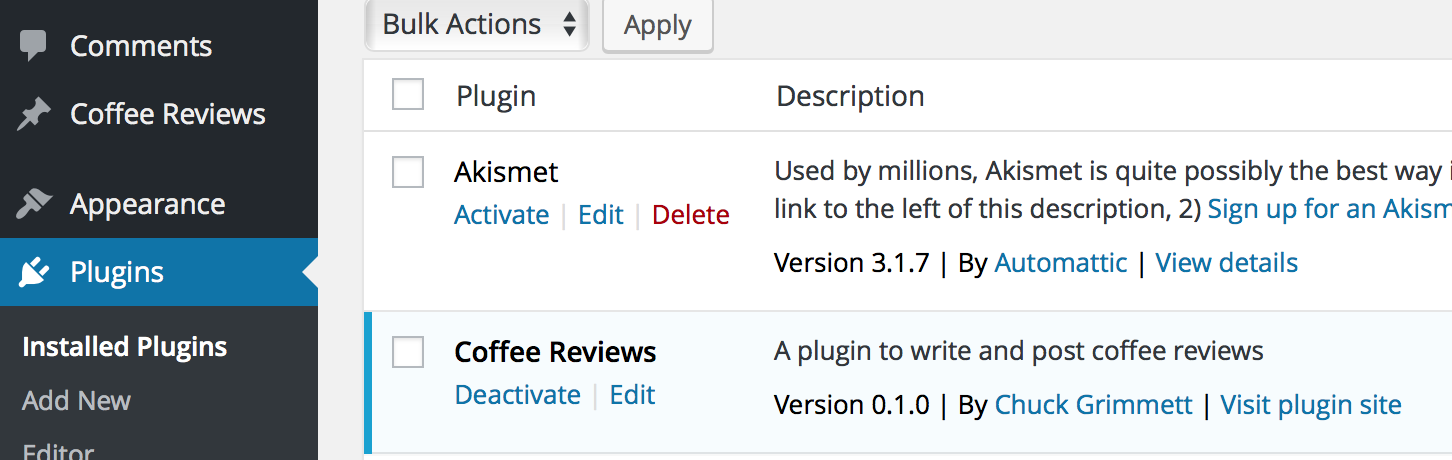
    I made a barebones plugin tonight that registers the custom post type. I definitely have more work to do, but saving, hitting refresh, and seeing this appear never gets old!

    barebones plugin

  • Easier Syntax Highlighting, Downloading WordPress.com Email Followers, and Jekyll Tools


    Today I learned:

    Easier syntax highlighting with Jekyll

    So it turns out that there is an even easier way to do syntax highlighting in Jekyll than I described last week. Jekyll 3 has Rouge highlighting built right in.

    To use it:

     {% highlight liquid %} Put your foo here 	bar end foo {% endhighlight %}  

    I need to go back though my previous posts and remove the Pygments highlighting then uninstall the plugin. Rouge supports fewer languages than Pygments, but Rouge supports all of the languages I use, plus Liquid and Markdown, which Pygments doesn’t.


    Downloading WordPress.com Email Subscribers

    I learned today that it is possible to download a CSV of the email subscribers to your WordPress.com blog (or WordPress.org blog powered by WordPress.com’s JetpackArchived Link). They don’t make it obvious, but the option is there:

    1. Go to https://wordpress.com/stats/follows/email and log in.
    2. Select the site you want to download your email subscribers for.
    3. At the bottom of the list, you should see an icon and download button:

    Download all email followers as CSV


    Jekyll Tools

    Last night I cleaned up some of my Jekyll templates and put them on Github with instructions for how to use them. Check them out:

  • Jekyll Tools


    Back in the summer of 2015, I decided to trash my website and rebuild it from scratch on top of Jekyll, a static site generator.

    My goal was two-fold:

    1. Build a new, fresh website to house my personal brand.
    2. Learn the Liquid templating language.

    I found a starter theme, gutted it, and spent a week digging in to how Jekyll works in order to build the features I wanted. Along the way I built out some tools and templates for myself and decided to share them on Github.

    The collection so far:

  • Infrastructure and Git Best Practices


    Today I learned:

    Proper development infrastructure

    When doing development work, it is best if you have a separate, dedicated area for each of these things:

    • Development – The area where you do your development work.
    • Staging – The area where you deploy changes and thoroughly test them. The only thing that should be out of sync with the production environment is the single change you are testing.
    • Production – The live system for stable, tested code.

    I’ve attempted to replicate this best-practice with the development of my Toggl slash command for Slack. My development environment is on a Homestead box on my local machine. The staging area is a folder on my dev server that a /toggldev command posts to. Once the changes here have been confirmed, I commit my code to the repository and then deploy it to production. The production environment is a folder on my main server that the /toggl command posts to. This is the one my team uses and it stays up to date with releases in the repository.

    Of course, the entire process is better if you have version control:

    A method for committing changes in Git

    Eric Davis advises me that it is better form to commit changes after each feature you want to release is completed rather than commit after a full day of work. If you don’t commit after each feature (and develop each feature in a separate branch), you’ll end up with a mass of code changes in each commit that is about as tangled as spaghetti.

    Right now, since I’m the only one working on my Toggl project and the changes I’m making aren’t major, I’ve only been working directly on the master branch. This Atlassian tutorial on branches has convinced me that I should be using branches on a daily basis for development, so I’m going to start that this weekend with some new features I plan to work on.

  • Checking for Keys and Looking Up Values in Arrays, Restricting Files in .htaccess


    Today I learned:

    Checking for a key in an array

     key_exists($key, $array) 

    For the Toggl Slack slash command, I’m using it to check if someone’s Toggl API key is in the array in variables.php:

     if (key_exists($user_name, $toggl_api_key_mapping) == FALSE) { 	echo ":warning: You haven't set up your Toggl API key with this command yet. Get it at the bottom of https://toggl.com/app/profile and send it  to @$your_admin_name."; } 

    Notes:

    • Case sensitive. If you need it to be insensitive, use strtolower() on the $key
    • Boolean (returns TRUE or FALSE)

    Looking up a key and returning a value in an array

     $array['key'] 

    For the Toggl Slack slash command, I’m using it to set someone’s API key from the array in variables.php:

     $toggl_api_key = $toggl_api_key_mapping[$user_name]; 

    Blocking access to files via .htaccess

    If you are serving something on your webserver that you don’t want anyone else to be able to access, you can restrict access to by adding this snippet to your site’s .htaccess file:

     log.csv> 	order allow,deny 	deny from all  

    If you need only a certain IP address, you can achieve this by adding allow from 0.0.0.0 (replace that number with your IP address):

     log.csv> 	order allow,deny 	allow from 0.0.0.0 	deny from all  
  • Basic Logging with PHP and Syntax Highlighting in Jekyll


    Today I learned:

    Basic Logging to CSV in PHP

    I asked Eric Davis about logging for debugging and usage stats on my Toggl Slack slash command and he suggested that I look into writing to a CSV or JSON file. I opted for CSV.

    Here I build the array from the information I get back from Slack (plus a datetime stamp) and pass it to a file called log.csv via fputcsv().

     $log_array = array($date,$user_id,$user_name,$command,$text,$response_url,$channel_id,$channel_name,$token,$team_id,$team_domain); $output = fopen('log.csv', 'a'); fputcsv($output, $log_array); fclose($output);

    A note on fopen() – A lot of tutorials replace that 'a' with a 'w'. According to the docs, w writes at the beginning of the file, which is why my first couple tries overwrote each other. The a starts writing at the end of the file, which is always a new line since fputcsv() always ends with a line break.


    Syntax Highlighting

    I finally found a good solution for syntax highlighting in code blocks with Jekyll: Kramdown with Pygments plugin.

    Installation is simple: Clone the project to your _plugins folder and add it to the Plugins section of your _config.yaml, then you are ready to go.

    Usage is equally as simple: Specify the language at the end of the first line of your code blocks and the plugin will add the proper classes and highlight the code according to the language.

    Example:

    ~~~~ php echo "Hello world!"; ~~~~ 

    Will output:

    echo "Hello world!"; 
  • Thoughts on Providing Solutions, Learning, Culture, and Distractions


    I didn’t do much technical work today besides some front-end debugging. Instead I did a lot of administrative and project management work and ended up thinking a lot about how I work.

    Here is what I thought about.

    Always provide a solution

    As a consultant, you aren’t paid to tell people they have problems. They already know that and chose to hire you. It is your job to provide solutions.

    Instead of being negative or saying that a proposal can’t be done, try to get at the heart of the request and offer an alternative solution. You and your clients will be much happier.

    As things get frustrating, it is easy to take the, “look how messed up this thing is” route. But that isn’t your job. You need to roll up your sleeves, brew some coffee, and come up with a solution.

    Learning

    I find time and time again that I retain so much more of what I learn if I’m applying it as I’m learning. So why do I continue to use books with pre-designed activities that I mindlessly copy? Because it is a lot easier than coming up with a project from scratch.

    From now on I’m applying what I learn in my own way. No more copying examples. I’m going to figure it out and learn it the hard way.

    Culture

    • Sometimes you need to find software that is a better fit for your culture. But sometimes you need to take a hard look at the culture and its ability to adapt if there doesn’t seem to be any good solution.
    • Like learning, sometimes cultural change only comes the hard way: Adapting because it is necessary.

    Distractions

    • Second screens are great for productivity when you are in the zone. Unfortunately they are also great for procrastination when you aren’t in the zone. Sometimes you need to turn that second screen off and focus on one thing at a time.
    • Filter, filter, filter. Reduce the number of things that can distract you. If you don’t need to make a decision on it, don’t let yourself see it. For example, in Excel, if you only need to read items that have a specific attribute, filter your view by that specific attribute and hide the rest.

    Idea for a Slack bot: What is distracting you right now?

    • Regular messages (10, 2, and 4?) via Slack
    • Respond with comma separated items that are distracting me.
    • Save those responses in a database for later analysis
  • Toggl Slash Command for Slack


    Today I released my first personal project on Github: Toggl Slash Command for Slack.

    It is a custom slash command that enables users to put time entries into Toggl from Slack.

    I like to learn by giving myself projects. I treat them as if I were releasing them to the public, even if I’m going to move on after I’ve learned what I want to learn. This is one of those projects. I created a roadmap of features that I probably won’t ever implement, but I learned a ton getting what I have so far to work, so I’m calling this a win.

    What I learned

    • How to read from and write to an API
    • How to structure complex if/then statements to parse input text
    • Dealing with arrays in PHP
    • Deeper regex processing
    • Unicode conversions
    • Releasing code to a public repo on Github
    • Designing security measures for a system deployed on the web
    • How to structure and design a codebase from scratch
    • How to work within the bounds of the different systems you are working in and finding ways around barriers
    • Implementing command line options
    • Using other projects in your own project via dependency managers like Composer
    • Writing documentation

    Features

    • Show a list of projects and their corresponding IDs in a given workspace
    • Show a list of tasks associated with a given project
    • Add time entries to Toggl straight from Slack’s message input box

    Screenshots

    Menu

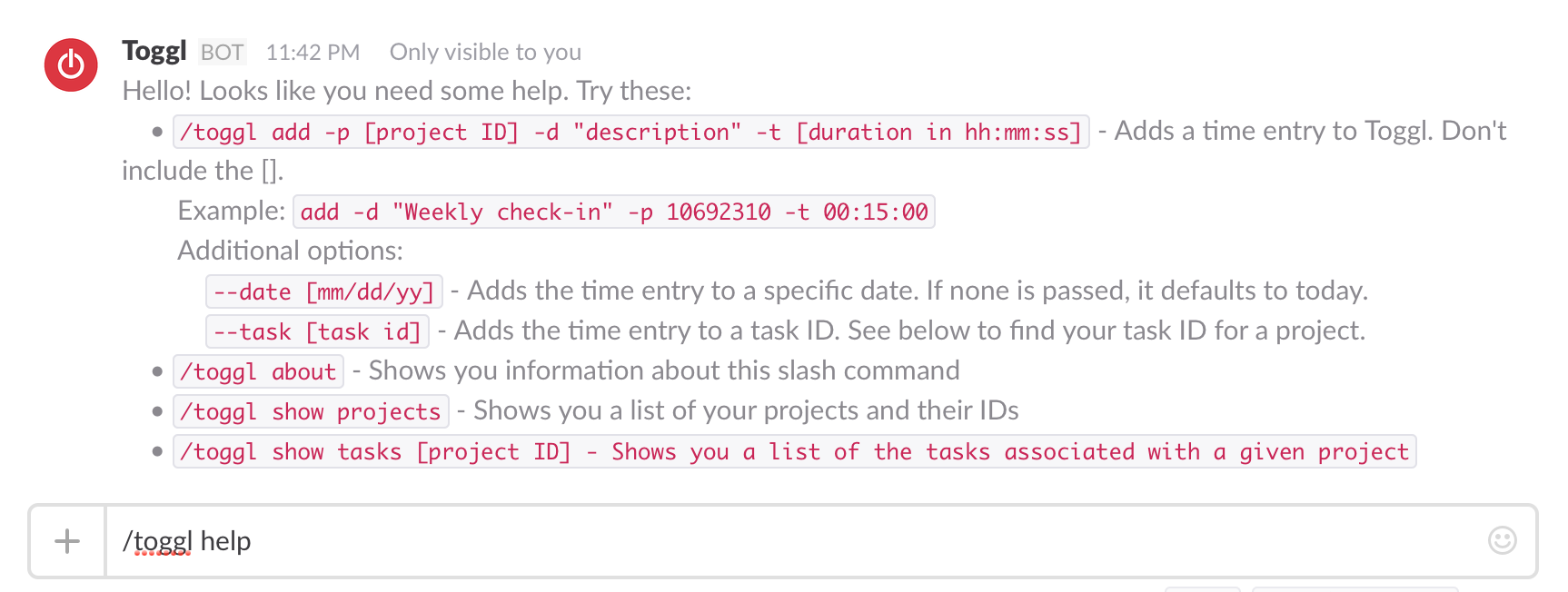
    Help

    Show Projects

    Show Tasks

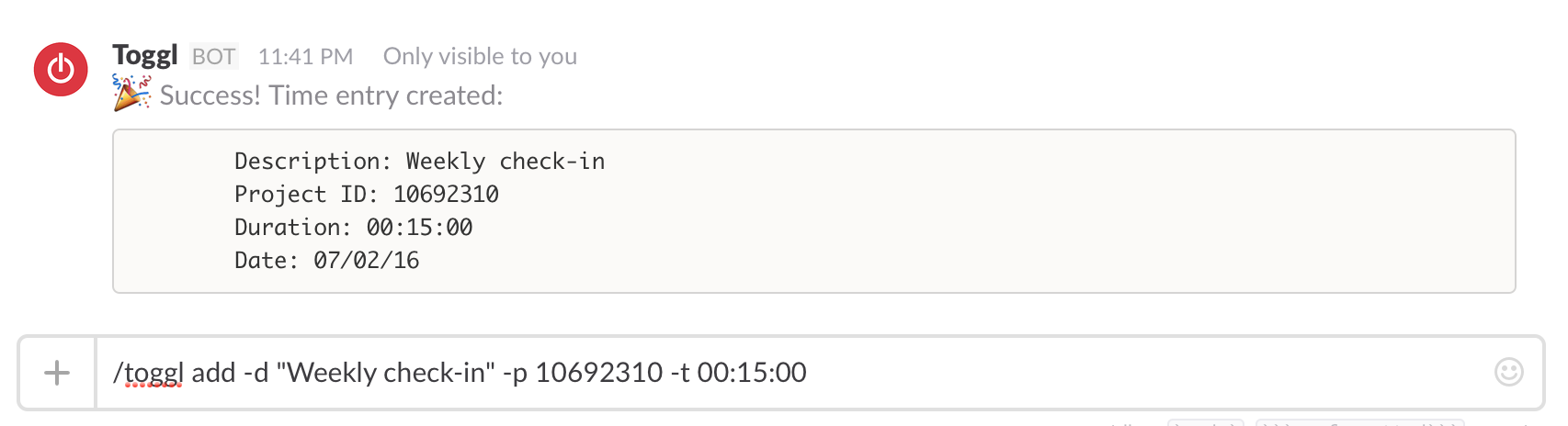
    Add and success

    Setup & Installation

    Dependencies

    • You must have PHP 5.3.2+ installed locally and on an accessible server.
    • You need Composer installed locally to install the third-party dependencies.

    Two third-party libraries are dependencies included via Composer:

    Local Installation

    • Clone or download this repository onto your local machine
    • Install Composer in this repository if you don’t already have it
    • Open a command line terminal and navigate to this directory.
    • Run: php composer.phar install via the command line to install the third-party dependencies

    Configure the variables file.

    1. Copy the variables-dist.php file to variables.php
    2. Fill out the Slack token you got while setting up the slash command.
    3. Fill out users’ Slack usernames with their corresponding Toggl API keys in the array. They can get those keys at the bottom of https://toggl.com/app/profile.
    4. Enter a workspace ID for your team. to find yours, log in to Toggl, then go to https://www.toggl.com/api/v8/workspaces. Pick the ID of the workspace you want to use. Don’t wrap it in quotes; it needs to be an integer.
    5. Set your team’s default timezone. Right now it is set to america/new_york.
    6. Save the file as variables.php in the same directory and you are good to go!

    Upload to a server with a valid SSL certificate

    1. Once the dependencies are installed, upload the whole directory to a server running PHP 5.3.2+
    2. Ensure you have a valid SSL certificate. Slash command URLs must support HTTPS and serve a valid SSL certificate. Self-signed certificates are not allowed. Check out CloudFlare for an easy way to obtain a valid certificate.

    Configure a custom slash command on Slack

    1. Log in to your Slack account and navigate to Custom Integration to set up a custom slash command.
    2. Click Add Configuration.
    3. Choose the command you want (I use /toggl).
    4. Fill out the path to the slash_parsing.php file on your server from above.
    5. Set the method to be POST.
    6. Copy the token and save it for variables.php below.
    7. Set a fun name and icon. I use Toggl’s logo from their media kit.

    Usage

    • /toggl help – Shows the syntax below
    • /toggl about – Shows info about this slash command and directs people to this repository
    • /toggl show projects – Shows the list of projects associated with API key of the user the workspace ID set in variables.php
    • /toggl show tasks [project ID] – Shows a list of tasks associates with a given project ID.
      • Example: /toggl show tasks 10692310
    • /toggl add -p [project ID] -d "description" -t [duration in hh:mm:ss] – Adds a time entry to Toggl. Don’t include the [ ].
      • Example: add -d "Weekly check-in" -p 10692310 -t 00:15:00
      • Additional options:
        • --date [mm/dd/yy] – Adds the time entry to a specific date. If none is passed, it defaults to today’s date.
        • --task [task id] – Adds the time entry to a task ID. See above to find your task ID for a project.

    Logging

    • I added basic logging to CSV for usage stats and debugging. This happens individually per project, stored in log.csv. Nothing is transmitted back to me.
    • If you’d prefer to not log usage, simply comment out lines 14-19 in slash_parsing.php.
    • Since the log includes a Slack token, you’ll want to deny access to log.csv on your webserver. I achieved that via my .htaccess file.
  • Unicode Conversions in PHP and Remote Git Repos


    Today I learned:

    Converting Unicode quotation marks in PHP

    Unicode quotation marks (sometimes called smart quotes) are those curved/slanted single and double quotation marks: “ ” ‘ ’. The ASCII ones look like this: " '. They are usually interchangeable in word processing, but the stylized ones sometimes cause issues on the web (in a parser, for example).

    To convert one to the other in PHP, use iconv():

     $output = iconv('UTF-8', 'ASCII//TRANSLIT', $input);

    If you use OS X and want to turn off smart quotes, go to System Preferences > Keyboard > Text and uncheck “Use smart quotes and dashes.”


    Remote git repositories

    Using git locally is one thing, but it is far more powerful (and exciting!) to push that code to a remote repository like Github for display and collaboration.

    Assuming you have a local repository that wasn’t cloned from a remote one, you’ll need to hook it up to a remote repository:

    $ git remote add origin 

    If there is code already on the remote repository, you’ll need to merge it in to your local:

    $ git pull $ git merge origin/master

    Then push your committed files to the remote repository:

    $ git push origin master

    For a great beginner’s guide to git, check out Roger Dudler’s git – the simple guide.


    Toggl Slash Command for Slack

    Today I released my first personal project on Github: Toggl Slash Command for Slack.

    It is a custom slash command that enables users to put time entries into Toggl from Slack.

    If you use it, I’d love to know! It is in its rough early stages, but I have some future additions planned for it, so stay tuned.

  • CSS Inheritance, Datetime Conversions in PHP


    Today I learned:

    CSS Inheritance

    • In CSS some styles are automatically inherited from their ancestors (i.e. elements which contain that element). For example, if you set body {color: red;}, all text inside the body element, regardless of what other elements the text is in, will be red unless the color style is set on one of those other elements later in the .css file.
    • This simultaneously makes writing CSS a breeze and debugging it a bit of a headache. There isn’t a great way to tell if a style is inheritable without looking at the docs.
    • If you encounter an issue where your style isn’t displaying as it should and it is not responding to changes, check the docs to see if the style can be automatically inherited. If so, check the ancestors of the element you are working on.

    The issue I ran into today was that my

     snippets kept wrapping no matter what overflow and width were set to. It turns out that word-wrap is automatically inherited and I had it set on an ancestor element.


    Date/time conversions in PHP

    Date conversions are tricky. Thankfully, PHP has some built-in functions to make this easier.

    Example: date("c", time()) will take the current time (provided as a Unix timestamp) and convert it to ISO 8601 format.

    Unix timestamps are the number of seconds that have elapsed since the Unix Epoch (00:00:00 Coordinated Universal Time (UTC), Thursday, 1 January 1970). They can be frustrating at first because they are so foreign looking, but they are really useful because:

    1. They are not subject to timezones.
    2. Since they are simply seconds, time math with Unix timestamps is pretty simple: Convert the time you wand to add or subtract into seconds and do the direct calculation. Then if you want to get it back into a recognizable format, use one of the functions above.

    I’ve been working on a custom Slack command to input time into Toggl, so I’ve been doing quite a bit with time conversions to get everything right.

  • Doing the Work, Flipping the Status Quo, and Alphabetizing in Liquid


    Today I learned:

    Doing the Work

    I used to be really interested in how people worked. When they get up, what their morning rituals are, what tools they use, how they use them, etc. While these things are interesting and tell a story about a person, they miss the point.

    How someone works isn’t nearly as important as the fact that they are doing the work. They made the choice to do what it takes each day to practice their craft. The rest is minutiae.

    If using the GTD method or having morning rituals works for you, great. But don’t think that those things are what really matter. If you’ve committed yourself to doing the work, you’ll find a way. If you haven’t committed yourself, none of the rituals or methods will make a difference.

    This commitment is very difficult, but necessary.


    Flipping the Status Quo

    We all suffer from status quo bias. How do we overcome it? We can get 80% of the way there by:

    • Instead of asking, “Why should this be different?” ask “Why should this stay the same?” – This is especially powerful when confronting clutter. (By the way, the answer, “because it gives me joy” is a valid reason for keeping something. Change for change’s sake isn’t helpful.)
    • Recognize the difference between acknowledging a feeling and rationalizing that feeling to keep the status quo.

    Source: Planet Money episode #683


    Sorting tags alphabetically in Liquid

    It was starting to annoy me that my tags were not in alphabetical order on my Today I learned page. So I learned how to sort them alphabetically with Liquid and I added anchor links with counts for each tag.

    Here is my updated template code:

    1 2 3 4 5 6 7 8 9 10 11 12 13 14 15 16 17 18 19 20 21 22 23 24 25 
      	{% assign sorted_tags = (site.tags | sort:0) %} 	 	 	{% for tag in sorted_tags %} 	  {% assign t = tag | first %} 	  {% assign posts = tag | last %} 	 	

    {{ t | downcase }}">{{ t }}

    {% endfor %}

    Sources: I cobbled this together from Michael Lanyon’s blog, Joe Kampschmidt’s blog, and the Liquid docs.