Chuck Grimmett

Productivity

Taxonomies

  • Logging completed tasks with Things and Alfred

    Logging completed tasks with Things and Alfred

    I’ve tried a few different methods of logging my completed tasks (notebook, notes app, a different notes app), but the friction of opening the book/app, finding the note, and logging the task was too high and I always abandoned the effort after a week.

    I’ve finally got something that stuck: Things URL schemes + Alfred Custom Web Search.

    Here’s how it works:

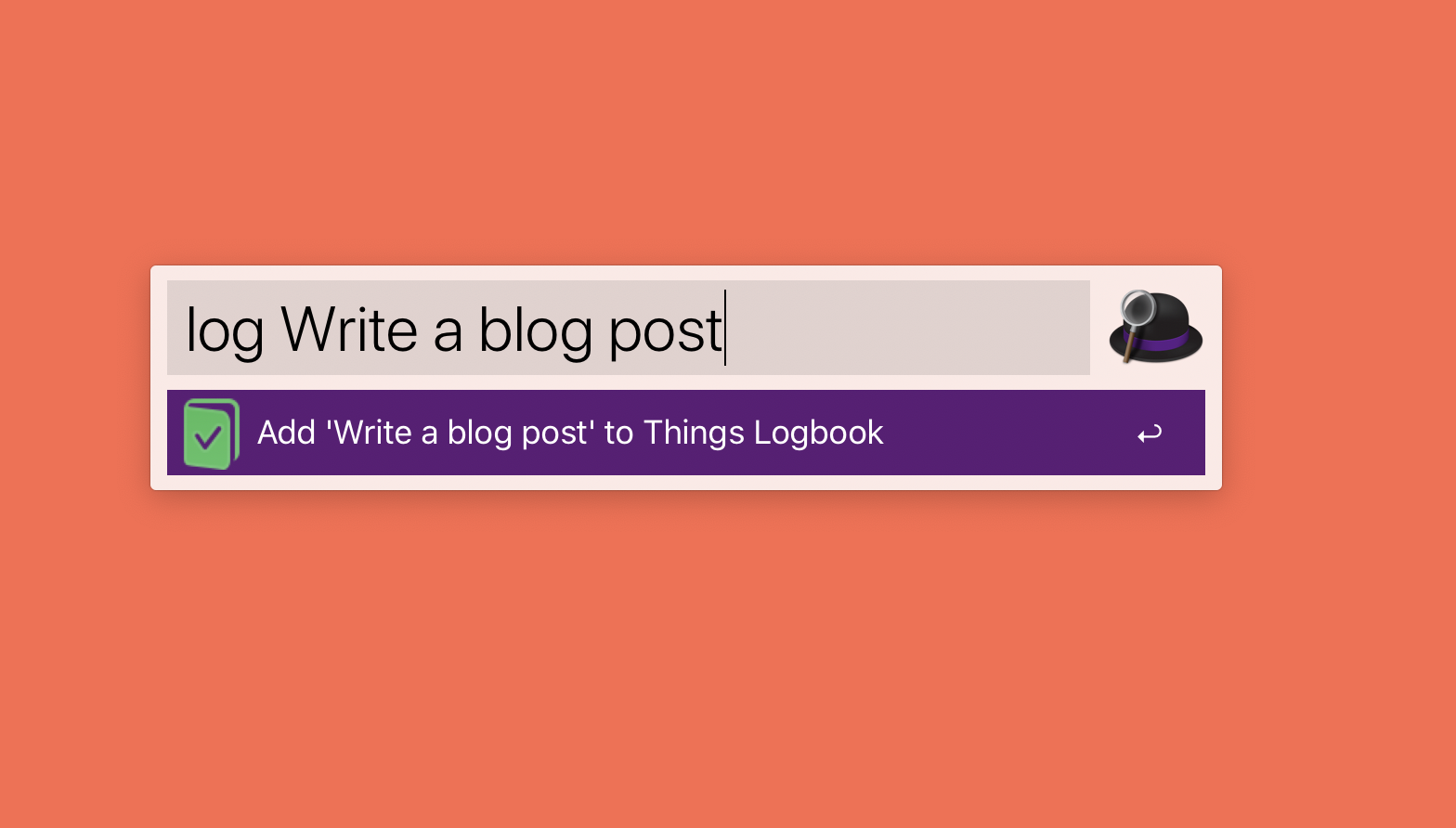
    1. I use the Link Builder to create the basic URL I need to pass to Alfred: things:///add?title={query}&completed=true
    2. I create a Custom Web Search in Alfred to take my completed task query and open it in Things. Having it marked at Completed automatically adds it to the Logbook, bypassing the Inbox.

    Things logbook

    Of course, you need Alfred and Things installed for this to work. They are tools I use every day. I highly recommend them.

    You can customize the link however you like, by adding tags, projects, etc. I keep it simple and just have a completed task.

    Want to use this? Here is a URL to add this directly to Alfred. (It will only work if you have Alfred installed.)

  • Productivity tip: Opening URLs from selected text all at once

    I wanted to share a trick I use to save me a ton of time: Opening URLs from selected text in Safari tabs.

    https://www.youtube.com/watch?v=XS_Ugnr-Bps

  • What work/life balance means to me

    What work/life balance means to me

    I have a certain capacity for creative output. That level may increase or decrease over time, but it stays relatively constant day-to-day.

    You can think of this capacity as tokens that I have available to spend each day. I can either spend these tokens at my full-time job, at a side gig, or on a personal project.

    I feel most balanced when I use 80% of my creative capacity at my full-time job and 20% elsewhere.

    When I use 100% of my capacity at my full-time job for an extended period of time (say 2 weeks or more), I feel unbalanced. My overall creative capacity starts to decline. Some might call this feeling burned out.

    When I use more than 20% on personal projects or side gigs (i.e. less than 80% at work) for more than two days in a row, I feel unbalanced, like I’m neglecting my work responsibilities. Like I’m falling behind and my output isn’t up to par.

    I’ve never taken complete breaks from creating things. The manifestation just tends to shift. On vacations I tend to pick up photography and journaling to fill the creative gap. Sometimes drawing. During the holidays I tend to make more elaborate meals and try making new cocktails.

    I’ve also never shifted 100% of my capacity into personal projects for an extended period. I haven’t been unemployed for more than a week in the past 7 years. Vacations are breaks from personal projects as much as traditional work, so that is why the output tends to shift to photography, journaling, and drawing.

    I routinely go 3-4 weeks at a time at a 95/5 split on work/personal. Those times my personal creative output tends to be listening notes from podcasts and cooking. Days during high work periods where I manage to put out a longer blog post, I’m almost certainly eating leftovers or takeout. (Tonight, for instance: 3 blog posts plus curating a bunch of book recommendations on Likewise and I ate leftover soup for lunch and made a taco salad from leftovers in the fridge for dinner.)

    I radically cut down the amount of side gigs I take on in order to prioritize personal projects. In fact, I have no side gigs going on at the moment.

    What would my creative output look like when focused 100% on the personal side? I haven’t experienced that since high school and college, but the photography projects I focused on during those periods still rank among what I consider my best. Even periods where I’ve shifted to a 20/80 split on work/personal resulted in projects I’m proud of and look upon fondly.

    In the next few years, I’d like to take a complete month away from full-time work and focus on personal projects for the entire time. Deliberately throw myself out of balance in a way I’m not used to and see what I create.

  • My Inbox Clearing Method

    Like many, I’m all about that Inbox Zero life. I’m not going to preach here about it. You’ve heard enough of that elsewhere. I’m going to show you how I get it done.

    Winning Before Starting

    I like to set myself up for success whenever possible. What that looks like here is severely limiting the amount of inbound email I get. Fewer incoming messages means fewer messages to process.

    • I am ruthless about unsubscribing to unwanted emails. I am only subscribed to seven newsletters, all of which I get value out of regularly. I immediately unsubscribe from sales and marketing emails I get after buying stuff online. If I have to give an email address on a website, I add “+promo” to the end of my address and use a rule to automatically send it to the trash.
    • For important day-to-day questions and messages from coworkers, we use Slack.

    These few things cut my email volume by 80%. The remaining 20% is primarily important, valuable, or actionable: Emails from clients, customers, friends, and family, important notifications, and interesting newsletters that I actually read.

    Method

    • I primarily process email on my 10.5″ iPad Pro using Spark or Airmail. I switch back and forth between the two every few weeks. Emails I can respond to immediately, I do. Emails that need further action get added to my to-do list. Both have a key feature that is critical to my workflow: The Share Sheet. This allows me to take an email and put it as a to-do item in my favorite task manager with a few taps without switching apps. As soon as an email gets added to my task list, it gets archived. The task includes a link directly to the email so I can get back to it quickly if needed.
    • On my Mac I also use Spark and Airmail, switching to whichever one I’m using on my iPad at the time. Both have widgets that allow me to share the email to my favorite task manager.
    • I use Things 3 as my task manager. Tasks that I share from my email get put into a holding zone (also called the Inbox), which I process and assign a due date and put into the correct bucket twice a day. Things has my definitive task list and I use it as a launch pad for planning my day each morning.
    • Every Monday I set my plan for the week and send it over to my boss. Because I’m not dogmatic about maintaining Inbox Zero every single day, I clear it out on Monday mornings before organizing my task list for the week just in case something in my email needs to go on the list.

    That is it. This is consistent for me because it is tied to a concrete weekly deliverable: My weekly check-in with Isaac. In order to give an accurate representation of my priorities and tasks for the week, I must clean out my inbox first. I leave myself no choice in the matter, because if I did, I’m likely to ignore my inbox and let it get out of hand.

  • Using Walks, Drives, and Commutes For Work

    I used to think that walking, driving somewhere, and commuting were things that we fundamentally opposed to work. Complete downtime. Even using them to listen to podcasts isn’t working. It is a good use of the time, but it isn’t working.

    I now regularly go for walks throughout the workday and take time commuting between my house and coffee shops without stress because I’ve learned how I can best use those periods of time productively for work: I use them to think about a specific problem.

    We all think when we walk, drive, and take public transit, but the key is using that time to focus solely on one problem instead of just letting our minds wander. It is tricky, because unlike working at your desk or diningroom table, driving, walking, and commuting are full of opportunites for distraction.

    Here is what works for me:

    • I define the problem I’m trying to solve, give it parameters, and write it down in my notebook.
    • I go over the relevant research I’ve done previously. It usually takes me no more than 15 minutes.
    • I forego podcasts and most music. If I’m on the train, sometimes I put instrumental music on to block out the surroundings, but if I’m walking or driving I leave my headphones in my bag. If your mind wanders, notice it and pull it back to the topic at hand without judgment.
    • I have a notebook ready to take notes. If I’m driving, I usually wait until I get to my destination. If I’m walking or taking the train, I can take notes immediately. I used to take notes on my phone, but I find the allure of apps and notifications too distracting, so now I opt to leave my phone in my pocket.

    Here is an example from earlier today. I wanted to go work from a coffee shop for a while because I needed some coffee. Here is how I used my time driving there and back:

    • Defining the problem: I have three months of curriculum content to decide upon with TK in a meeting this afternoon and 6 topics to choose from. What best flows from what already exists and how can it be used?
    • Research: Going over the existing 6 topics to choose from and the curriculum elements we’ve already decided on.
    • Today I was driving, so I left podcasts off and just thought as I drove. When my mind wandered off, I noticed it and gently shifted my focus back to the curriculum, just like I’ve been learning to do with my daily meditation practice. (I use Headspace.)
    • When I got to the coffee shop, I wrote down the ideas I had and took a few minutes to refine them.
    • I worked on something else for a while, and then got ready to go home. I reviewed my earlier notes and asked myself, “Where are the holes in this plan? What would make this better?” That is what I focused on while driving home.
    • When I got home, I had 15 minutes to write down my notes and get ready to talk to TK about them.

    I do this all time time now, especially on my walks. It is amazing how much framing a specific question before leaving and focusing on that can turn something we usually squander into useful time.

  • The Afternoon Check-in

    The Afternoon Check-in
  • How to Hit Reset and Keep Going

    We’ve all been there: It is 4:30pm, our energy is low, we have at least four hours of work left to do, and we feel like giving up and taking a nap.

    In that moment, we must make a critical decision: Do we keep going and get our work done or throw in the towel, knowing we will pay the price later?

    If it were five hours earlier, the work would be no problem. A fresher, more energetic version of ourselves earlier in the day had what it took to knock this stuff out. The trick is to get back into that earlier state of mind.

    Here is what I do to hit reset and keep going:

    Change the body, change the mind

    “The difference between peak performance and poor performance is not intelligence or ability; most often it’s the state that your mind and body is in.” — Tony Robbins

    One of the things Tony Robbins talks about is the connection between your body and your mind. Your physical state has a huge impact on your mental state.

    When your mind is feeling in a slump, your posture is likely slumped over, too. Your breathing is probably shallow. If you change these two things, your mindset will shift, too.

    Here is the physiological checklist I go down when I’m feeling sluggish:

    • How is my posture? Stand up straight, move from the chair to the standing desk.
    • Do I need to roll my back? If my posture has been off for a few hours, I like to get out my foam roller and arch my back for 90 seconds and then roll it out for another 90 seconds.
    • How is my breathing? Am I breathing deeply enough? Do I need to do 2–3 minutes of box breathing? Try breathing in sync with this gif. Breath in, hold, breath out, hold, repeat.
    • Do I need to stretch? Try doing 30 seconds each of your favorite stretches.
    • Do I need to get my blood pumping? Try running some stairs, swinging a kettlebell, doing some burpees, or doing some old-fashioned jumping jacks.
    • Do I need to rehydrate? I’m terrible about drinking enough water. Sometimes I’m just dehydrated and need to drink a glass of water.
    • Do I need to do a power up? After reading Super Better by Jane McGonigal, I was sold on power ups: Little things that are easy to do and make you feel better. Mine are 1) Stretching my arms to the sky for ten seconds (physical) and 2) Watering and the house plants (emotional).
    • Do I need to take a cold shower? A cold shower will radically shift your state of mind. At the end of a normal shower, I like to turn the temperature as low as it will go and stand there for two minutes. It gets me ready to start the day. It will also pull you out of the fog of malaise.

    Get a change of scenery

    Sometimes working at the same desk all day just doesn’t work well for me. Being in a physically different place helps.

    • Try moving from your desk to a conference table. Or, if you are like me and both live and work in a small one-bedroom apartment, switch to your kitchen table instead of your desk.
    • Go work from a coffee shop. Getting out will be nice and and extra caffeine boost won’t hurt, either. I don’t have any good coffee shops within walking distance of me, so when I can’t take the time to drive to one, I go work from the local brewery. I have the wifi password and I order the lowest ABV % beer on the menu and nurse it. Always leave the bartender a hefty tip since you are taking up a seat.

    Sometimes a break is necessary. Just make sure the break is helping you reset instead of just prolonging the struggle.

    • Go for a walk. Sometimes a break is necessary. Just make sure the break is helping you reset instead of just prolonging the struggle. Going for a walk is more likely to get you in a better frame of mind than watching Netflix and surfing Facebook. While you walk, breathe in fresh air, take in some different sights and sounds, get your blood pumping, and let your struggles go for 15–30 minutes. You’ll come back ready to work.

    Remove distractions

    Our lizard brains love to be distracted by anything and everything. Removing them and making them harder to reach will lower the barriers to focus.

    • Put your cell phone out of reach. Mine sits on a table out of my normal reach while I’m working so that I don’t mindlessly surf Instagram all day.
    • Install a social media and news site blocker. I use WasteNoTime in Safari and Chrome.
    • Close email, Slack, and Skype. Keeping in touch is great, but sometimes you need to disconnect to get real work done.

    Get into work mode

    Think back to the last five times you’ve had to buckle down and get some work done? Is there something you do that signals “it’s time to work”?

    For me it is putting my headphones on and turning on Beaucoup Fish by Underworld. I only listen to this album when I’m working. I’ve done the same thing f0r the last 15 years. It has a Pavlovian effect on me now.


    Make a plan

    Now that your body is good to go, you’ve gotten a change of scenery, you’ve removed your distractions, and you’ve put yourself in work mode, it is time to make a plan to dig yourself out of this hole.

    • Pare your task list down to essentials. If you don’t have a task list, make one. Your tasks will seem must more doable once they are on paper and not just lurking around like monsters in your head. If you do have a task list already, put things into two categories: What absolutely needs to get done today? and What can actually be done later? Sometimes we think things must get done today, but in reality there will be no consequences if they are pushed to the next day. Figure out what must be done today so you can focus on that.
    • Figure out the best order to accomplish these items in. I’m a big fan of eating the frog (doing the most important and difficult thing first), but sometimes things need to be done in a specific order.

    Build momentum

    Take the first step, then the second, then the third. The whole journey is composed of simple steps.

    Once your list is made, take the first step to completing the first item. Then the second step. Then the third. Then the fourth.

    Once the first item is completed, don’t take a break to check your email. Keep your momentum rolling and take the first step on your second item. Then the second step. Then the third.

    Once a ball is rolling, it doesn’t stop easily. You’ve got this.

  • Take Notes During Your Next Crisis

    Take Notes During Your Next Crisis

    The best time to learn how to handle crises is right after you just had one. Analyze what happened, what you did to solve it, and then make a checklist for when it happens next time.

    Then, during your next crisis, take a deep breath and start jotting down notes of what is happening and what you are doing. This makes your post-game analysis easier to complete.

    We had a mini crisis at work today: Some of our sites weren’t connecting to our MySQL servers and we couldn’t figure out why. The problem was intermittent. Our sysadmin is on vacation, so a few of us had to jump in and try to figure it out. When we were in a holding pattern while waiting for our hosting provider to call us back, I made a checklist of what we need to do the next time this happens. This took into account what we had to figure out on the spot, look up, diagnose, and what we learned. Now we have it for the future.

    H/T to Episode 279 of Back to Work with Merlin Mann and Dan Benjamin. I listened to it this morning and their discussion of making checklists while traveling for travel made me think of doing this during the MySQL issues.

  • How to keep track of files and requests in Slack

    How to keep track of files and requests in Slack

    Today I learned:

    How to keep track of files and requests in Slack

    Slack is wonderful for collaborating with remote teams, but if there is a lot of activity at once, it can be easy to lose files and requests.

    • If I’ve seen the request or file, I acknowledge by marking it with , then I put it on my to-do list of choice, WunderlistArchived Link. (They have a great Slack commandArchived Link to make this easy: /wunderlist add)
    • If I’ve fulfilled the request or processed the file, I mark it with
    • If the request/file is no longer needed or I’ve tried to process it, encountered an error, and notified the appropriate parties, I mark it with so that I know in the future that there was an issue with it instead of assuming it was done and I moved on.
    • Using Slack’s great search functionality, I can easily visually figure out what I’ve processed and what is still outstanding.
    • If I get a request when I’m in the middle of something else, I copy the link and use Slack’s /remind command to remind me about it later in the day.
  • Faux Basecamp to Slack Integration

    Get Basecamp notifications in Slack for free without custom code.

    A few weeks ago, Slack rolled out a very useful email integration. I didn’t think I had much use for it at first because Slack drastically cut down on the amount of email I receive.

    The one thing I still found myself regularly flipping back over to my email window for was notifications from Basecamp, the project management app.

    Slack does not officially integrate with Basecamp as of this writing, though there are a few community-built integrations and a paid connection through Zapier. I held off using one of these solutions because I didn’t want to pay for a service or set up a cron job with webhooks that I might have to monitor. Checking my email was a low-cost alternative.

    When I logged in to Basecamp the other day, I noticed that you can specify a different email address for notifications than the one you set up your account with. This means you can use the new Slack Email integration to funnel Basecamp notifications into Slack. Awesome!

    Email notification settings on Basecamp allow you to set an email address that is different from the one you created your account with.

    I quickly set up the integration to post to a private channel, and uploaded Basecamp’s icon for quick visual recognition. Then I grabbed the email address Slack generated and changed Basecamp notifications settings.

    BINGO. Works like a charm.

    Email integration settings on Slack

    Do you want to set up this integration and use the Basecamp icon? Here is a handy version that is already in the correct aspect ratio. You’re welcome.

    Basecamp/37 Signals owns all rights to this image. I just found it online and cropped it to a square aspect ratio.
  • Big Wins: Audiobooks

    This is the first post of a series that will focus on improvements I’ve made in my life that have led to advances in my productivity, effectiveness, or general well-being. I call these things big wins.

    Back in high school, I remember a few people recommended that I listen to audiobooks. I tried, but never got into it on a regular basis. Audiobooks were something that my family listened to in the car on long road trips, but nothing more.

    That changed last summer. A post by Sebastian MarshallArchived Link pushed me over the tipping point, but recommendations from multiple friends led me that far. I must have read the post at the right time. At first, I tried finding free audiobooks, but most were classic novels with low quality narrators. I listened to a few, but only on long drives. I couldn’t seem to get into them otherwise. On my quest for contemporary non-fiction books, I signed up for an Audible account. They seemed to have the best selection and had a deal going on for new subscribers.

    That was June 2011. Since then, I’ve purchased about 30 audiobooks and so far I’ve listened to more than 20 of them. Most of them were non-fiction (on a wide variety of subjects), though a few were fiction. I’ve learned quite a bit and I have made many changes to the way I live my life due to what I read (er.. listened to..) in the audiobooks.

    I do not use audiobooks as a replacement for reading. I still read physical books that I have to hold in my hands, as well as digital books on my Kindle and iPad. (I am currently reading Brothers Karamazov, Deleting the State, and It Starts With Food the old-fashioned way. I can read multiple books concurrently as long as they aren’t the same genre.) I use audiobooks for when I would otherwise have dead time, such as walking to work, cooking, washing the dishes, or generally doing menial tasks that do not require my full attention. Without changing my schedule, I consumed an extra 20+ books in the past year. I’ve learned a little bit about neuroscience, exercise, diet, philosophy, economics, the founding of Google, the lives of people who have accomplished great things, self-discipline, productivity, travel, and more. I’ve also listened to some excellent literature and bought a physical copy of a few of the titles so I can spend some more time with them.

    The majority of the books I listen to are informational books. This isn’t a coincidence: I can listen to informational books in 20 minute chunks without getting lost since most of the information does not rely heavily on what came immediately before it. I save the philosophical books and novels for long drives, plane rides, etc.

    This year, I am on track to listen to 50+ audiobooks, again without changing my schedule. I am not pushing off tasks or projects to listen to audio, nor am I cutting into my regular reading time. I am simply being more diligent about listening to audio while I am doing menial tasks. For the past 3 weeks, I’ve gone through a book and a half a week.

    A few times a year, Audible runs a $4.95 sale. For a few days they list 200+ titles, mostly popular titles that people actually want to listen to, at $4.95 each. At that price, you can grab 5 great books for $25, which is an insanely good price, considering that the books usually go for between $13-$25 a piece. Each time this sale comes around, I stock up on great titles.

    Another way I can listen to so many books is that I play them at 1.5x speed. I think most of the narrators are fairly slow compared to how my friends speak, so listening to the books at 1.5x sounds fine to me. This allows me to listen to an hour of recorded audio in 40 minutes.

    A note on podcasts: I haven’t explored them. I know there are many excellent ones that my friends listen to, but audiobooks have been more than adequate for me this past year. I will look into podcasts again soon. I am sure there are a few that I would enjoy listening to each week.

    My number one complaint with listening to audiobooks is that my headphones are always tangled. I am currently looking into bluetooth headphones to solve this problem. I think not having to deal with wires will be a significant improvement. (Have any recommendations?–Let me know in the comments.)

    What could you learn if you consumed an extra 20 books a year without changing your schedule? More importantly, what are you missing out on? Give audiobooks a try and let me know how it goes.

  • Day 89 – Productivity Apps

    We read articles like “Top 10 [insert adjective here] Apps” on Digg at least once a week. Well, I decided to out together a list, not because I think I know better what is best, or I am discontented with the few thousand other top 10 articles out there, but because I wanted to put a list together of what I use most and often to make my life easier. In fact, there are not even 10 apps on this list, nor do I claim that these are the best designed, or the best for the job. They are simply the ones I have found and use almost on a daily basis. I will provide a brief description of each one, why I use it, and a link to where you can get it. I will also indicate the cost, though most of these apps are free. Keep in mind, I use Mac OS X, so the PC users are out of luck unless the developers make a Windows or Linux version of these apps I don’t know about it. Also, I am running these on 10.5.6, so if you are running older versions of a Mac OS, they might not work. (Look, if you are using 10.3, 10.4, or below, it is time to upgrade. If you are still using system 9 or below, it is definitely time to upgrade, and I am surprised you can actually view this site on that system.) With that said, here are 6 applications I use pretty much daily to keep my life in order and running smoothly.

    Please Digg this article if you find it useful!
    Please Digg this article if you like it!


    ThinkArchived Link (freeware, 10.4.9 and up)

    Think by Freeverse

    Think, by FreeverseArchived Link, is an application to help you focus on the matter at hand on your computer screen. Open Think, select an application to use, and Think puts a dark (or colored, if you want) screen behind your current application window so other things on your computer screen do not distract you. You can bring another application into Think temporarily by clicking on it on the dock, but once you select the original application you were working on, it goes behind the screen once again. This application is particularly helpful when I am writing papers, because it is easy for me to get distracted by other things on my computer screen. Also, since you can bring in other apps, it is easy to use Dictionary (which comes pre-installed on OS X) to look up words or synonyms without getting distracted by other things. Also, if you leave an IM client up, you will still know when you have messages because Think keeps the Dock viewable.


    AnxietyArchived Link (freeware, 10.5 and up)

    Anxiety by Tom Stoelwinder

    Anxiety is a lightweight to-do list app written by Tom Stoelwinder of Model Concept. It sits on your desktop and allows you to quickly add tasks and check them off when finished. Best of all, it syncs with Mail and iCal to keep your to-dos all together and viewable without having either iCal or Mail open. You can sort the to-dos by category (calendars in iCal), or list them all together. I set this application to launch on startup and to stay viewable in all of my spaces so I am constantly reminded of what I need to do.


    Timer (freeware, 10.4. and up)

    Timer by Apimac

    “Timer is a complete and professional stopwatch, alarm clock, countdown and clock utility” made by Apimac. It is free and has an easy-to-use interface, like most Apimac software. I only use it for the countdown and alarm, though I can see the benefits of using its other features. The countdown is especially helpful when doing laundry, which I just did yesterday. Other uses include cooking, napping, or taking a break while working. Just set how much time you want to spend, set which alarm you want, and go about your day. What’s helpful is that you can launch an application after the time period is over. If you are really resourceful, you can write your own application to launch which quits all games or time-wasting applications at the end of the time period so you can get back to work. I have not had to go to this extreme, but I know people who would certainly benefit from it. If this is you, but you don’t know Applescript, I can write a custom app to do this for you at a low cost. Contact me.


    1Password ($39.95 USD, 10.4.11 and up)

    1Password by Agile Web Solutions

    1Password is a secure password managing, form-autofilling, password generating, and award-winning utility made by Agile Web Solutions. 1Password integrates directly into most browsers (Safari, Firefox, Flock, Camino, OmniWeb, DEVONagent, Fluid, iCab, and NetNewsWire) to securely manage and auto-fill web forms. It also has iPhone/iPod Touch and Palm support. You have to unlock 1Password when you open an internet browser, but this one instance saves immense amounts of time if your normal browsing includes logging into multiple sites each session. You can also access your information through 1Password’s UI, and this also requires unlocking it before use. Essentially, this is a much better version of Apple’s Keychain Access if you already use that. It saves me immense amounts of time and makes my online experience progress quickly and smoothly.


    iClip ($29 USD, 10.4 and up )

    iClip by Inventive

    iClip, by Inventive, is a multiple clipboard and scrapbook utility. It allows you to store virtually unlimited items from your clipboard to recall later. I use this daily for copying multiple items and keeping them on hand for later use. For example, if I am writing an email and sending someone multiple URLs, I find them and copy them one right after another, and then paste them all in the email afterwards instead of copy and pasting them individually. It saves a great deal of time, especially if you are looking for something three hours later. iClip saves a predetermined number of your clipboard items until you clear them.


    Spaces (included with Mac OS 10.5)

    Spaces by Apple

    For those of you who use Leopard and do not know about Spaces, it is time to be enlightened. Spaces allows you to have multiple workspaces at once so your windows do not pile up. You can easily toggle between these spaces by keyboard commands or by clicking on the application, but either way, it saves an immense amount of time. No longer do you have to move windows around to find what you were working on––just open different tasks in different spaces! I set certain applications to open in certain spaces so I always know where they are, which is very helpful. With this, I use Expose, also included in 10.5 (and 10.4). Expose allows you to see all of your windows at once, or temporarily show your desktop by simply moving your mouse pointer in a predetermined corner of your screen or by using a set hotkey. If you have 10.5 and are not using these applications, open up System Preferences and enable them (the fourth icon from the left on the top row). You will be glad you did. In fact, I think Spaces is enough of a reason to upgrade to 10.5 if you haven’t already done so. Of course, there are many, many other reasons to upgrade.