fname– I had to make this a snippet instead of putting it in directly because in the filename creation string TextExpander didn’t recognize the date string. If you nest it inside another snippet, it works just fine.
%Y-%m-%d-%filltext:name=title%.md
;tem
--- layout: post title: author: Chuck Grimmett date: %Y-%m-%d category: TIL feature-img: "/img/defaults/%snippet:;random-img%" tags: - excerpt: --- ### Today I learned:
Hazel is a preference pane-based application that helps you automate organization on your Mac.
Within a few hours of using Hazel, I was able to clean out my 1000+ file Downloads folder, tame my unruly Desktop, get rid of all the trash that accumulated in my home folder, and organize my stashes of client files. I also set up rules for the future that will keep these places neat and orderly.
The next step is to turn my gaze on my photo library to create one master repository.
I have multiple old Aperture photo libraries that I canât really use anymore. Aperture doesnât run on El Capitan and I donât have any system that it can run on. Iâve been using Adobe Lightroom for the past four years anyway. So I did some research into options into how I can retrieve my photos.
Opening the package
The great thing about Aperture was that it always kept the master images and applied edits on the fly. So I knew that I could get the master images out of Aperture. The way you can get to them is right-clicking on the library file and selecting âShow Package Contents.â Then you can take the masters folder and copy it out of the library.
For example: here is how I’d combine columns of hours and minutes and put a colon in-between: =[@Hour] & ":" & [@Minute]
Convert hours.minutes to hh:mm:ss in Excel
Take 275.75 and convert it to 275:45 =CELL/24 converts the hours.minutes to days Then you format the column by Custom > Time > 37:30:55 (hh:mm:ss)
SQL Dates, Concatenation, and Grouping
I learned some useful things today in SQL: SUM(), CONCAT_WS() to get CSV output, DATE() to get the date part of a datetime stamp, and GROUP BY to get the sums grouped by another column
If you’ve ever tried to write a sum() function in Excel while you have filters on, you likely didn’t get the result you expected. The sum() function adds up what is in the raw cells. It does not take whether or not they’ve been hidden via a filter into account.
subtotal() is the function you are looking for. Specifically, subtotal(9,range). The 9 refers to sum for hidden (not at a result of filtering, though) and non-hidden rows. See the documentation.subtotal() functions only on the results of filtered data.
=SUBTOTAL(9,G1670:G640501) gave me the sum of the the filtered data from G1670 to G640501. (You can see why filtering would be important with such a large data set!)
Remind yourself why
Sometimes I spend too much time and effort trying to convince myself to do something I don’t want to do. This leads to general angst and despair.
My wife reminded me yesterday that the best way of convincing myself is to reflect on why I’m doing it in the first place.
Whatever your reason why is, as long as it outweighs the cost of not doing it, you’ll get over it and find a way. I keep an index card with some why bullet points on it nearby to keep things in perspective.
{%highlightliquid%} Put your foo here bar end foo {%endhighlight%}
I need to go back though my previous posts and remove the Pygments highlighting then uninstall the plugin. Rouge supports fewer languages than Pygments, but Rouge supports all of the languages I use, plus Liquid and Markdown, which Pygments doesnât.
Downloading WordPress.com Email Subscribers
I learned today that it is possible to download a CSV of the email subscribers to your WordPress.com blog (or WordPress.org blog powered by WordPress.comâs JetpackArchived Link). They donât make it obvious, but the option is there:
Slack is wonderful for collaborating with remote teams, but if there is a lot of activity at once, it can be easy to lose files and requests.
If IâÂÂve seen the request or file, I acknowledge by marking it with , then I put it on my to-do list of choice, WunderlistArchived Link. (They have a great Slack commandArchived Link to make this easy: /wunderlist add)
If IâÂÂve fulfilled the request or processed the file, I mark it with
If the request/file is no longer needed or IâÂÂve tried to process it, encountered an error, and notified the appropriate parties, I mark it with so that I know in the future that there was an issue with it instead of assuming it was done and I moved on.
Using SlackâÂÂs great search functionality, I can easily visually figure out what IâÂÂve processed and what is still outstanding.
If I get a request when IâÂÂm in the middle of something else, I copy the link and use SlackâÂÂs /remindcommand to remind me about it later in the day.
I might start using this for my code snippets in the future. Right now I have some CSS styles that conflict with it, so I need to sort those out first.
VPN Connection issues
I had VPN connection issues today. The solution was to stop using the IPSec client and start using the AnyConnect client.
Iâve been having a lot of discussions about privacy and data collection recently, both at work and with friends. This episode of Whatâs the Point on privacy with Kashmir Hill cleared up some common misconceptions. The main points:
If a companyâs fundamental business model is collecting data and figuring out things about you (i.e. Google and Facebook), they arenât selling your data, but rather selling access to your attention to advertisers. They donât want to give up your data to other people because it is such a valuable resource to them.
Some companies who sell you physical products have a side-business selling data on what you bought and when to others.
Privacy has become a genuine concern for companies recently, as evidenced by the rise in end-to-end encryption in consumer products like iMessage. This is worrying to some government agencies.
If you read privacy policies, they actually tell you all the ways a company is going to violate your privacy. As long as a company doesnât do anything they didnât say they were going to do, they are protected.
I’ve been making some patterns for the header images on these TIL posts in my down time the past few days. There are two ways to tile patterns in Photoshop. One is manual and time consuming, the other is fast, easy, and less prone to error.
The manual, time consuming way is to open a pattern in one layer, duplicate the layer multiple times, and move the layers so that they line up in a tiling pattern. While PS is pretty great at snapping items to a grid, sometimes they don’t always line up and you only find out after you export the image.
The fast and easy way is to open the pattern in PS, go to Edit > Define Pattern…, then use the Pattern Stamp Tool to paint the pattern you just created across a large canvas.
This would have saved me a lot of time on the first nine headers, but c’est la vie. This will definitely save me time going forward.
Homestead Provisioning
I use Laravel Homestead for my local PHP environment. Provisioning a new site is something I’ve done multiple times, but I do it so infrequently that I have to look it up each time. So here are my quick notes:
Create the site folder in ~/Projects/
Map the folder and domain in ~/.homestead/Homestead.yaml
Map the domain to 192.168.10.10 in /etc/hosts/ (reminder: $ sudo nano /etc/hosts/)
Run $ cd ~/Homestead
Run $ vagrant up --provision or $ vagrant reload --provision if vagrant is already running.
Site should now be accessible locally.
If you need a new database for this site and load it from a SQL dump:
$ vagrant ssh $ mysql -u homestead -p-e'create database DBNAME;'$ mysql -u homestead -p DBNAME < path/to/file.sql
Composer Basics
Composer is a dependency manager for PHP. I’ve used Composer, but like Homestead provisioning above, I’m a little rusty. Writing it down helps me remember.
After you’ve installed it (I have it installed globally), the basic usage is:
Set up composer.json in the directory you are working on. A basic structure looks something like this:
When writing these TIL posts, I want to eliminate as much resistance as possible so I can get straight to writing. The more steps I have to take, the less likely I am to follow through. So I took some time today to automate the one of the tedious parts: Setting up the markdown file I write these posts in with most of the specs already filled out.
I created 3 TextExpander snippets to help with this process:
One with today’s date string and extension separated by dashes for the file name: %Y-%m-%d-.md (I tried a fill-in for the title, but the filename doesn’t stay selected in Coda when another window launches)
One with Javascript randomly picking one of the 7 default header images I use (this is used in the next snippet):
Besides for the normal scope, budget, platform, dependencies, timeline, and underlying technologies, here are a few things you need to consider when architecting and planning out a software development project:
After delivery, what resources will we have available to maintain the system and handle emergencies?
What impact will maintenance and support have on our ability to sell and develop new projects in the future?
What is the opportunity cost of using one developer over another?
Use the jQuery parents() selector to return the appropriate parent element, then use the css() method to set the style you want. For example, ("a i").parents("li").css({"margin-right": "5px"}); finds list items who are the ancestors of icons wrapped in links and makes their right margin 5px.
Change the structure of your code and add specific classes that you can apply your desired styles to. For example, instead of applying a right margin to all list items and then a different right margin (via parent selector) for all list items that contain icons, make two classes with the proper margins and apply one to the plain list items and the other to list items that contain icons.
I opted for #2. It makes your CSS cleaner, keeps you from having to load new dependencies like jQuery, and keeps the styles in one place so you don’t have to search 6 months from now for where that extra margin is coming from. I’d only use the first option in cases where you have complex rules that can’t be accomplished by restructuring your code and/or adding classes to make your desired change possible.
Project-wide Find and Replace in Coda
I do the vast majority of my code-writing in Coda. I used to have to open up TextWrangler to do find and replace across multiple files, but apparently Panic added this feature into Coda sometime between v1 and v2.5. I got used to having to switch and didn’t look for it again until today.
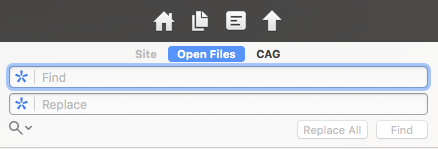
It is buried in the sidebar under “Find In” instead of in the regular find and replace bar, so I never saw it. You can search across open files, the entire site, or in a specific directory on your local machine.